
How forms, contacts, and custom fields work together
The big picture on forms: what they do, where the answers go, and how they connect to your contact records.
A form is how the platform turns an anonymous website visitor into a real contact record you can follow up with. Someone fills in their name, email, or phone number, hits submit, and the platform creates (or updates) a contact, stores every answer, and can immediately kick off automations — a welcome email, a task for your team, a text message. This article is the map before you dive into building your first form.
What a form actually does
Every form on the platform does three things when someone submits it:
- Captures the answers. Each field on the form (name, email, "what's your budget?", a dropdown, a checkbox) becomes one piece of data.
- Creates or updates a contact. If the email or phone number on the submission matches someone already in your account, the platform updates that existing contact instead of creating a duplicate. If it's new, a fresh contact record is created.
- Triggers whatever you've connected to it. A submission can fire a workflow (automation), send a notification email to your team, redirect the visitor to a thank-you page, or all three.
Note: A form submission is the moment your marketing (a page, an ad, a funnel step) becomes a lead in your CRM. Everything downstream — nurture emails, pipeline stages, sales follow-up — starts here.
Forms, contacts, and custom fields: how the pieces connect
Think of it as three layers:
- The form is the container — the layout, the fields, the styling, the button.
- Fields are the individual questions. Some map to standard contact properties that already exist on every contact (First Name, Last Name, Email, Phone, Address). Others map to custom fields — properties you define yourself because they're specific to your business (e.g., "Preferred move-in date," "Number of employees," "Referral source").
- The contact record is where every answer ends up living, permanently, attached to that person — visible any time you open their profile, regardless of which form they originally filled out.
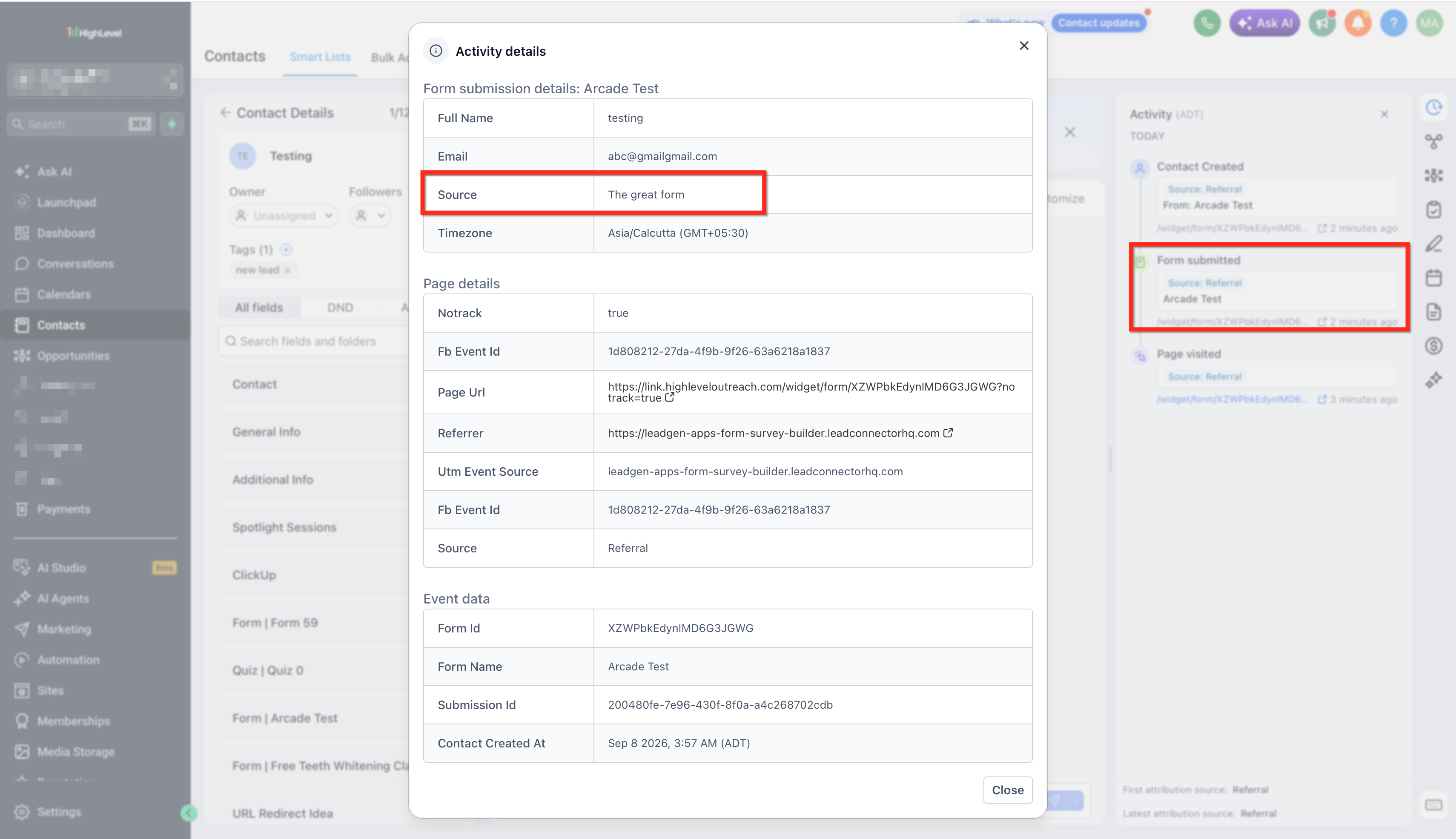
Because custom fields live on the contact (not just on the form), the same custom field can be reused across multiple forms, surveys, and even manual data entry. Create a custom field once — "Industry," say — and any form on the account can ask for it and write to the same place.
Tip: Before building a new form, check whether a custom field for what you're asking already exists. Reusing fields keeps reporting and segmentation clean; creating a near-duplicate field ("Company Size" vs. "Company Size (New)") splits your data across two places.
Where form answers show up afterward
Once a visitor submits a form, you can find the data in a few places:
- The contact's profile, under the fields you mapped it to.
- The form's Submissions tab, a spreadsheet-style list of every response to that specific form (covered in Managing submissions and notifications).
- Automations, if you've built a workflow that triggers on "Form Submitted" — the workflow can read any field from the submission to personalize what happens next (branch on an answer, insert the visitor's name into an email, etc.).
Standard fields vs. custom fields — when to use which
| Standard field | Custom field | |
|---|---|---|
| Examples | First Name, Last Name, Email, Phone, Address | Budget range, Preferred appointment type, Lead source detail, Pet name |
| Exists for every contact automatically | Yes | No — you create it |
| Best for | Core contact info every business needs | Anything specific to your offer, industry, or sales process |
| Reusable across forms | Yes | Yes, once created |
You don't need to create a custom field for anything that already has a standard equivalent — always map "Email" questions to the standard Email field, not a custom one, or automations that rely on the contact's email (like sending a confirmation) won't fire correctly.
Source tracking: knowing where a lead came from
Forms can also silently capture where a submission originated — which page, which ad, which campaign — using a source field and UTM parameters carried in the page URL. That's useful the moment you're running more than one traffic source, so you're not guessing which channel actually produces leads. We cover this in detail in Conditional logic, hidden fields, and UTM capture.
What "done" looks like
You should be able to answer, for any form in your account: what contact fields does it write to, are those standard or custom, and what happens automatically the moment someone submits it. If you can't answer that for a form you're about to publish, pause and check its field mappings before it goes live — it's much easier to fix now than after a hundred submissions have landed with the wrong mapping.
Related articles
Frequently asked questions
Do I need a separate form for every page?
No. The same form can be placed on multiple pages, or embedded on an external site, and every submission still lands in the same place. Use separate forms when you genuinely need different questions or different automations per page — not just to give each page "its own" form.
What happens if someone fills out a form twice with the same email?
The platform recognizes the matching email (or phone number) and updates the existing contact rather than creating a duplicate. Newer answers typically overwrite older ones for the same field, so the contact record always reflects their latest submission.
Can a form update a contact that already exists from a different source (like a manual import)?
Yes. Matching is based on the email or phone value, not on how the contact was originally created. A form submission will find and update any existing contact with a matching identifier.