
Conditional logic, hidden fields, and UTM capture
Show or hide fields based on answers, pass hidden data along with a submission, and automatically capture which campaign a lead came from.
A static form asks everyone the same questions in the same order. Conditional logic, hidden fields, and UTM capture let a form behave smarter than that — skipping irrelevant questions, silently carrying data along with a submission, and automatically recording which campaign actually produced the lead. None of this is visible to the person filling out the form, which is exactly the point.
Conditional logic: making a form respond to its own answers
Conditional logic lets you build rules of the shape "if this answer is that, then do this." Rules are evaluated top to bottom in the order you build them; for actions like redirecting or disqualifying, the first matching rule wins, and evaluation stops there. For showing or hiding fields, a later matching rule can override an earlier one.
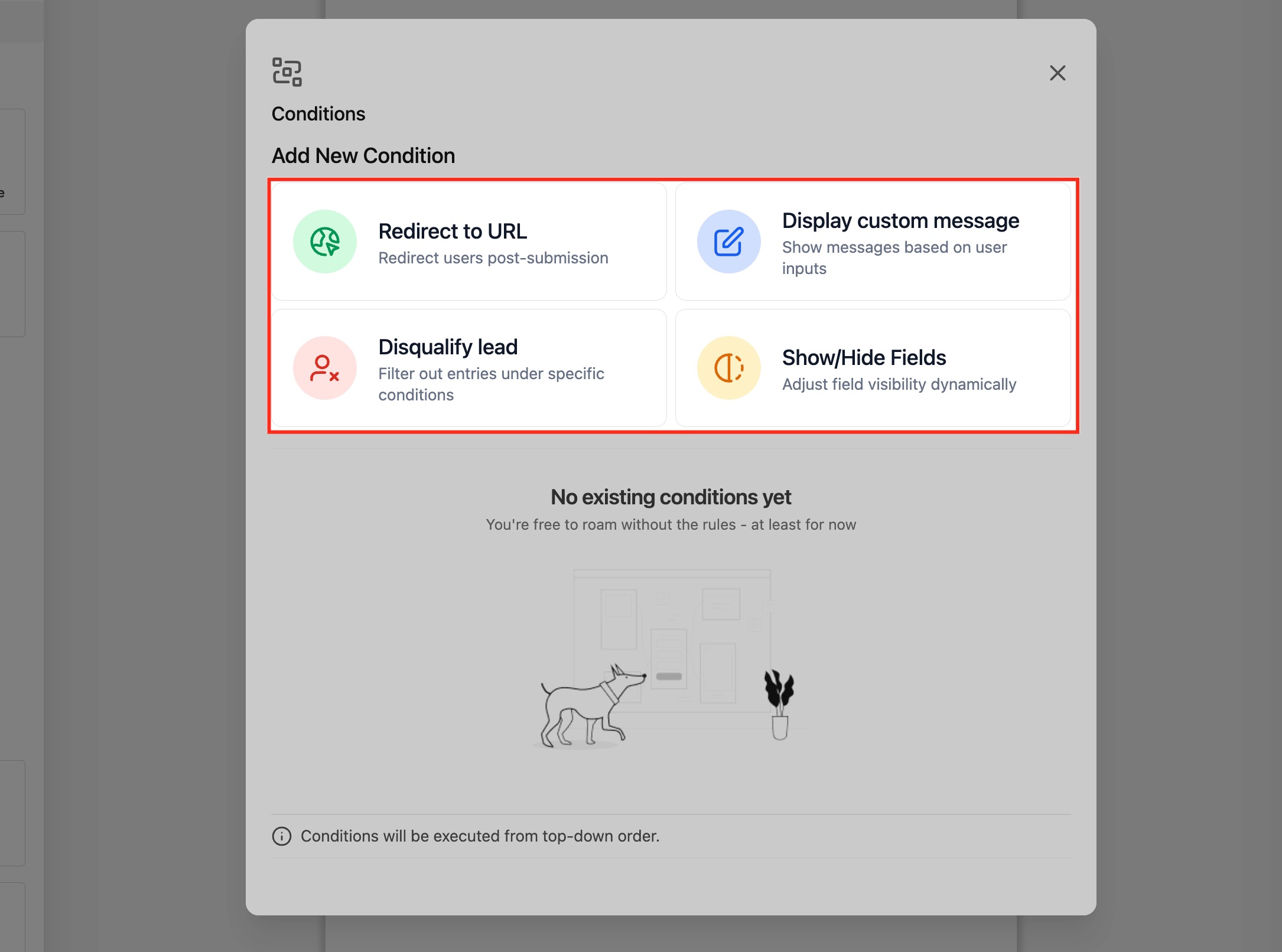
The four things a rule can do
- Show or hide fields — reveal a follow-up question only when it's relevant. For example, show a "Which service?" dropdown only after someone selects "I'm interested in a specific service" rather than "Just browsing."
- Display a custom message — replace the form (or show inline text) with a specific message based on an answer, instead of the generic default.
- Redirect to a URL — send the visitor to a different page depending on their answer, e.g., qualified leads go to a booking calendar, everyone else goes to a "thanks, we'll follow up" page.
- Disqualify a lead — stop the flow for someone who doesn't meet your criteria (budget too low, wrong location, wrong industry) rather than letting them book time your team can't actually use.
Building a rule
- Open the form (or survey) and find the Conditional Logic section of the builder.
- Choose the field the rule should watch (the trigger field).
- Pick an operator. Available operators depend on the field type:
- Text fields: equal to, contains, starts with, ends with, is empty, is filled
- Numbers, scores, dates: equal to, greater than, less than, between, is empty, is filled
- Dropdowns and checkboxes: is equal to, is not equal to, is empty, is filled
- Terms & conditions checkboxes: is checked, is not checked
- Choose the action (show/hide, message, redirect, disqualify) and configure it.
- Repeat for additional rules, keeping in mind they run in order.
Tip: Build and test each rule one at a time. A form with five interacting conditional rules can be genuinely hard to reason about once they're all live — submit test entries that hit every branch before you trust it with real leads.
Common use cases
- Survey branching: a "No" answer to "Are you a homeowner?" skips the next three homeowner-specific questions entirely.
- Lead scoring/qualification: low answers on a budget or timeline question trigger the "Disqualify Lead" action instead of letting an unqualified lead book a call.
- Personalized redirects: different answer combinations send visitors to different landing pages or calendars suited to what they're asking for.
Hidden fields: passing data without asking the visitor
A hidden field is a field on the form that never displays to the visitor but still gets saved on the submission — used to carry information the form already "knows" without making someone type it in. Typical uses:
- Recording which page or funnel step the form was submitted from, when the same form is embedded in several places.
- Passing a referral code or affiliate ID captured earlier in the visitor's journey.
- Carrying a static tag you want attached to every submission from a specific campaign or source, useful for filtering later.
To set one up, add a field to the form, set its value to a fixed value or a value pulled from the URL, and mark it hidden so it doesn't render for the visitor. Because it still writes to a real contact or custom field, everything downstream — automations, reporting, segmentation — can use it exactly like a visible field.
Note: Hidden fields are for information the visitor doesn't need to see or confirm. If it's something they should actively agree to (like a consent checkbox for compliance purposes), it needs to stay visible — don't hide anything a visitor should knowingly opt into.
UTM capture: knowing which campaign actually converted
UTM parameters are the tags marketers add to the end of a link — utm_source, utm_medium, utm_campaign, and similar — to track where traffic came from. When someone clicks a tagged link, lands on your page, and fills out a form, those UTM values (along with a general source field, and referring URL) can be captured automatically and stored on the resulting contact.
This matters because it's the difference between knowing "we got 40 leads this month" and knowing "we got 40 leads, and 28 of them came from the Facebook retargeting campaign, not the Google search ads costing three times as much."
What gets captured, and where to find it
Once configured, source and UTM data show up on the contact record alongside the rest of their submitted info — you'll typically see fields like Source, UTM Campaign, UTM Medium, and UTM Source populated automatically, with no extra fields for the visitor to fill in. From there, this data can be used in:
- Reporting, to compare lead volume and quality by campaign.
- Automations, to branch a workflow based on where a lead came from (e.g., different follow-up sequences for organic vs. paid traffic).
- Segmentation, to build lists of contacts from a specific source for a targeted follow-up campaign.
Warning: UTM capture depends on the visitor actually arriving via a properly tagged link. If your ads, emails, or social posts link to your page without UTM parameters attached, there's nothing for the form to capture — source tracking will show blank or generic values for that traffic. Get in the habit of tagging every outbound link you want to measure.
What done looks like
For a form using conditional logic, walk through every branch as a test submission and confirm each rule fires the right action. For hidden fields, submit a test entry and check the resulting contact record to confirm the hidden value landed where you expected. For UTM capture, click through a link with UTM parameters attached, submit the form, and verify the source data shows up on the new contact — don't just assume it's working silently in the background.
Related articles
- Build your first form
- How forms, contacts, and custom fields work together
- Managing submissions and notifications
Frequently asked questions
Can conditional logic reference a field's answer from earlier in a multi-step form?
Yes — this is one of the most common uses of conditional logic in a multi-step survey: an answer on step one determines which questions appear on step two. See Multi-step forms and quizzes for more on step-based flows.
Do hidden fields count toward the "keep your form short" advice?
Not in the way that matters for conversion — since the visitor never sees or fills in a hidden field, it adds zero friction to completing the form. Feel free to use as many hidden fields as you need for tracking and automation purposes.
What if a visitor's browser blocks UTM tracking or they arrive with no parameters at all?
The form still submits normally; the source-related fields on the resulting contact will simply be blank or show a generic default rather than a specific campaign. This doesn't affect any other part of the form's functionality.