
Add a form to a page or embed it on an external site
Place a form directly on a page you built here, or embed it on a site hosted elsewhere using the JavaScript or iframe embed code.
A form only generates leads once it's actually live somewhere a visitor can see it. There are two ways to get it there: drop it directly onto a page you're building inside the platform, or embed it on a site hosted elsewhere using a snippet of code. This article covers both.
Option 1: Add a form to a page you built here
If your page — a funnel step or a website page — already lives inside the platform, this is the simplest path.
- Open the page in the page editor.
- Drag a Form element onto the page, wherever you want it to appear.
- In the element's settings, choose Select an existing form (to reuse one you've already built) or Create a new form (opens the Form Builder directly, as covered in Build your first form).
- The form renders live on the page, inheriting the width of the column or section it's placed in.
- Publish the page as usual.
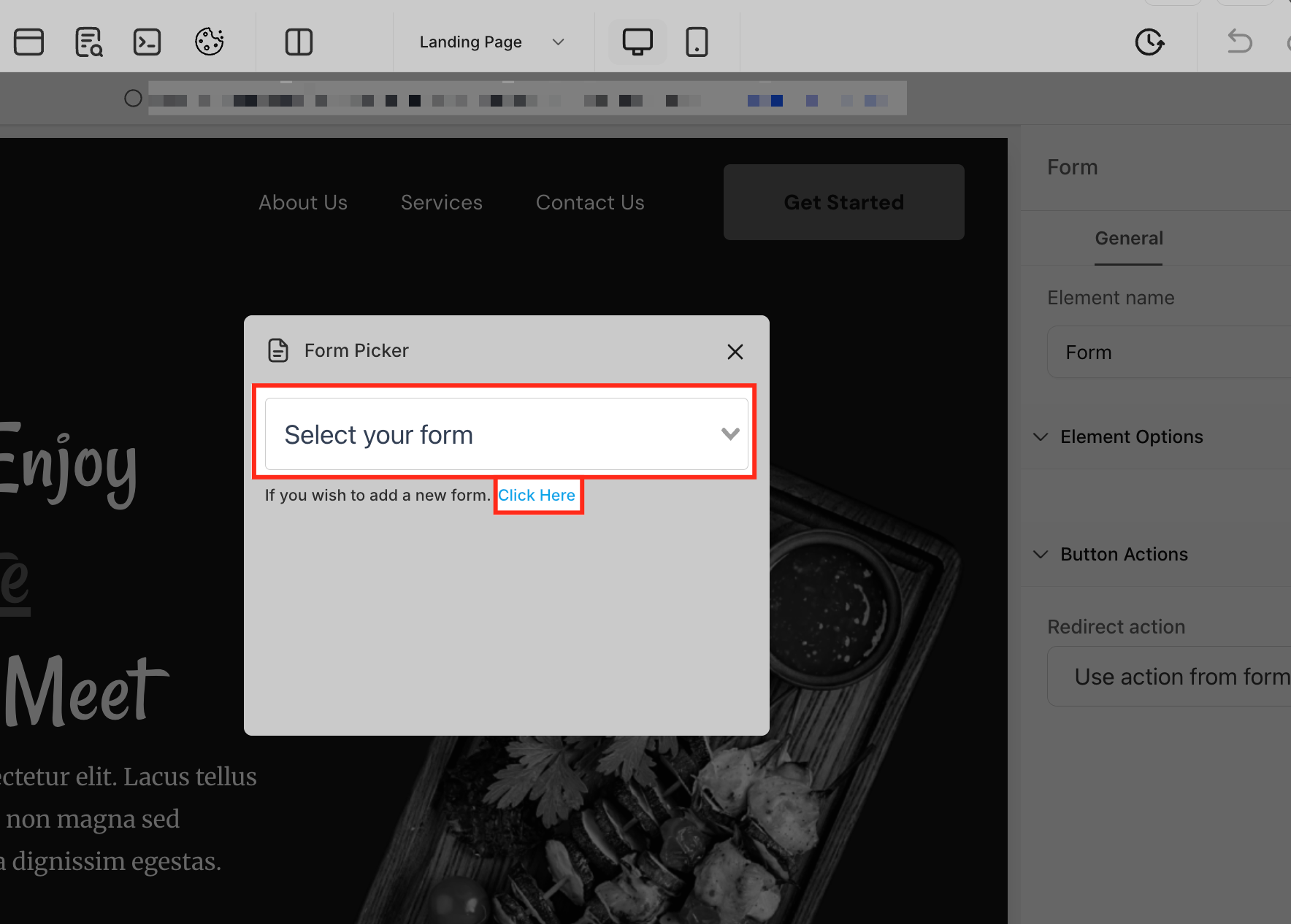
Because the form is a reusable object, the same form can be placed on multiple pages at once — every submission from any of those pages still lands in one place, with one set of submissions and one set of automations. Use this when you want, say, the same contact form in your site footer and on a dedicated contact page.
Tip: If you need different automations or different fields depending on where the form appears (e.g., "came from the pricing page" vs. "came from the blog"), either add a hidden field that records the page (see Conditional logic, hidden fields, and UTM capture) or build a separate form per page — don't try to force one form to serve two very different jobs.
Option 2: Embed a form on an external site
If your site is hosted somewhere else — WordPress, Webflow, Squarespace, or a custom-built site — you can still use a form built here by embedding it with a small code snippet.
Get the embed code
- Open the form in the Form Builder.
- Look for the Integrate (sometimes labeled Publish or similar) section in the builder.
- You'll typically see two embed options — copy whichever one fits your situation:
- JavaScript embed — a
<script>snippet that renders the form directly into the page, matching the surrounding page's fonts and styles more naturally. - iFrame embed — an
<iframe>snippet that loads the form inside its own isolated frame.
- JavaScript embed — a
Paste it into your site
- On most website builders (WordPress, Webflow, Squarespace), find the option to add a custom HTML / embed block, and paste the snippet there.
- On a fully custom-coded site, paste the snippet directly into your page's HTML at the point where you want the form to render.
<!-- Example iframe embed shape -->
<iframe
  src="https://your-forms-domain.example/widget/form/FORM_ID"
  style="width:100%;height:600px;border:none;"
></iframe>
Note: The exact markup you're given will differ based on which embed type you copy — always use the snippet the builder gives you rather than hand-writing your own, since it includes the form's specific ID and tracking hooks.
JavaScript vs. iframe: which to use
| JavaScript embed | iFrame embed | |
|---|---|---|
| Matches surrounding page styling | Better — renders as part of the page | Can look visually boxed-in |
| Auto-resizes to fit content | Usually yes | Sometimes needs a manual height adjustment |
| Works on stricter security setups | Can be blocked by some security plugins/CSPs | Generally more compatible, since it's a standard isolated frame |
| Best for | Most modern site builders | Sites with strict script restrictions, or when you want strict visual isolation |
Try the JavaScript embed first for the cleanest look. If the form doesn't render, or your site's security settings block third-party scripts, fall back to the iframe version.
Troubleshooting a form that won't display
- Nothing shows up at all: A security plugin or Content Security Policy on the external site may be blocking the script or iframe source. You may need to allowlist the domain the embed code loads from.
- The form is cut off or has extra empty space: With an iframe embed, the frame's height is often fixed in the snippet. Manually increase the
heightvalue in the code until the whole form is visible without excess blank space below it. - Styling looks off compared to the preview: The host site's own CSS can sometimes bleed into an embedded form (more common with JavaScript embeds than iframes, since iframes are fully isolated). If this happens, switching to the iframe embed usually resolves it, at the cost of the form looking slightly more "boxed."
What done looks like
Visit the live page (not the builder preview) in an incognito/private browser window and confirm: the form renders fully, at the correct height, styled the way you expect, on both desktop and mobile. Submit it once yourself end to end to confirm the submission reaches your account and any notifications or redirects fire correctly — an embed that looks right can still silently fail to submit if the wrong code snippet was used.
Related articles
- Build your first form
- Style your form
- Conditional logic, hidden fields, and UTM capture
- Managing submissions and notifications
Frequently asked questions
Can I embed the same form on multiple external sites?
Yes. The same embed code can be placed on as many external pages or domains as you want; all submissions still land in the same place in your account.
Will an embedded form still capture UTM parameters and traffic source?
Yes, in most cases — the embed code is built to carry that tracking information along with the submission, the same as a form placed on a page built here. Confirm this is working by submitting a test entry through a URL with UTM parameters attached and checking the resulting contact.
If I edit the form later, do I need to re-copy and re-paste the embed code?
No. The embed code points to the form by its ID, not a snapshot of its current design. Any changes you make in the Form Builder — new fields, restyling, updated automations — apply automatically everywhere the form is embedded, without touching the embed code itself.