
Add a blog to a website or funnel
Use the Blog Posts element to show a list of articles, or a single post, inside any website page or funnel step — with filtering and layout options.
Your blog's own pages (like yourdomain.com/b/) aren't the only place articles can appear. The Blog Posts element lets you drop a list of articles — or a single featured post — into any website page or funnel step, so you can highlight content on your homepage, a landing page, or anywhere else in your site.
Before you start
You need:
- A blog with at least one published post. The element won't display anything meaningful with only drafts.
- A website page or funnel step you're editing.
Step 1: Open the page in the editor
- Go to Sites, then open either Funnels or Websites.
- Select the funnel step or page you want to add the blog to.
- Click Edit to open the page builder.
Step 2: Add the Blog Posts element
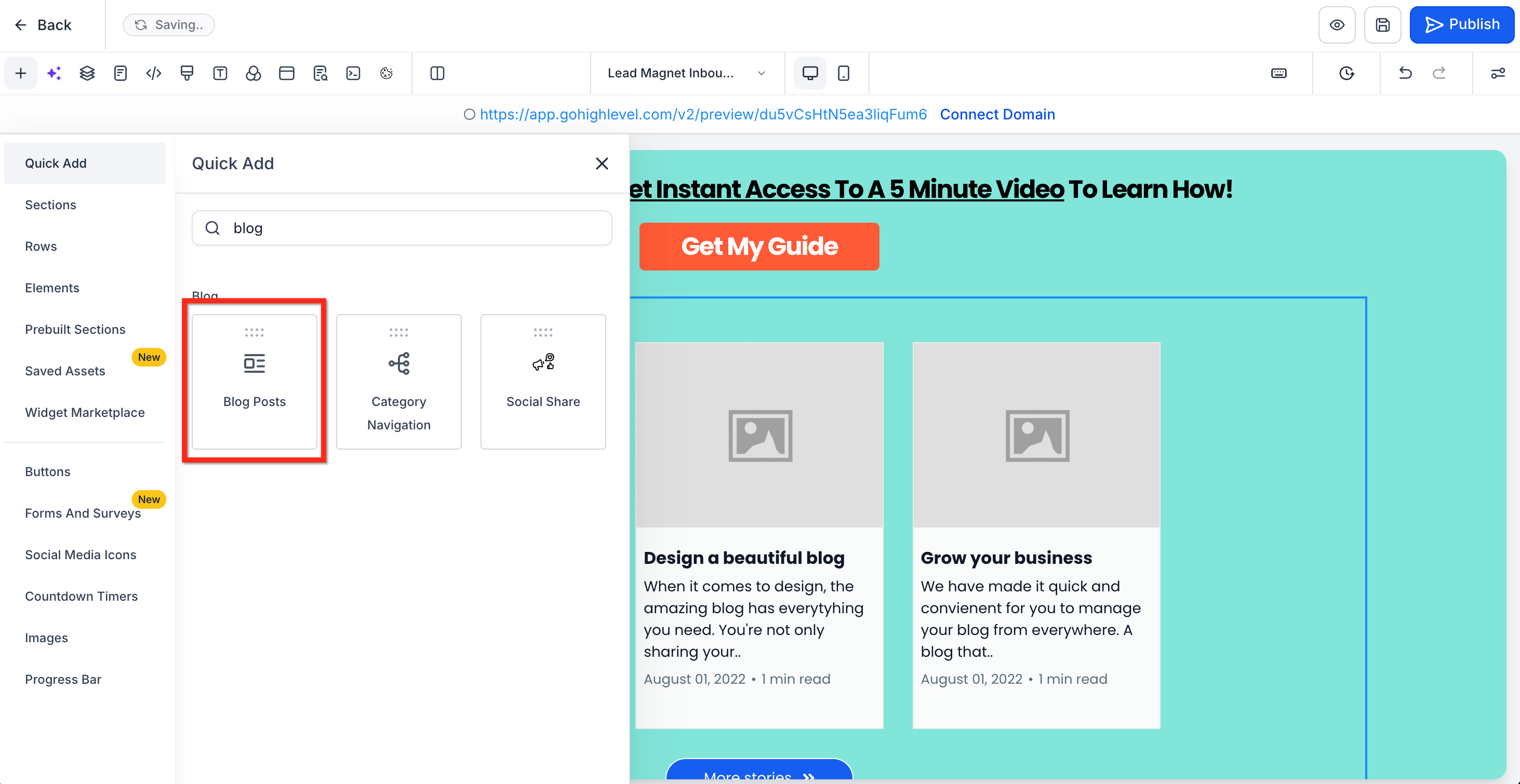
- Click Add Elements to open the element panel.
- Find the Blog Posts element and drag it onto the page where you want it to appear.
Step 3: Configure the element
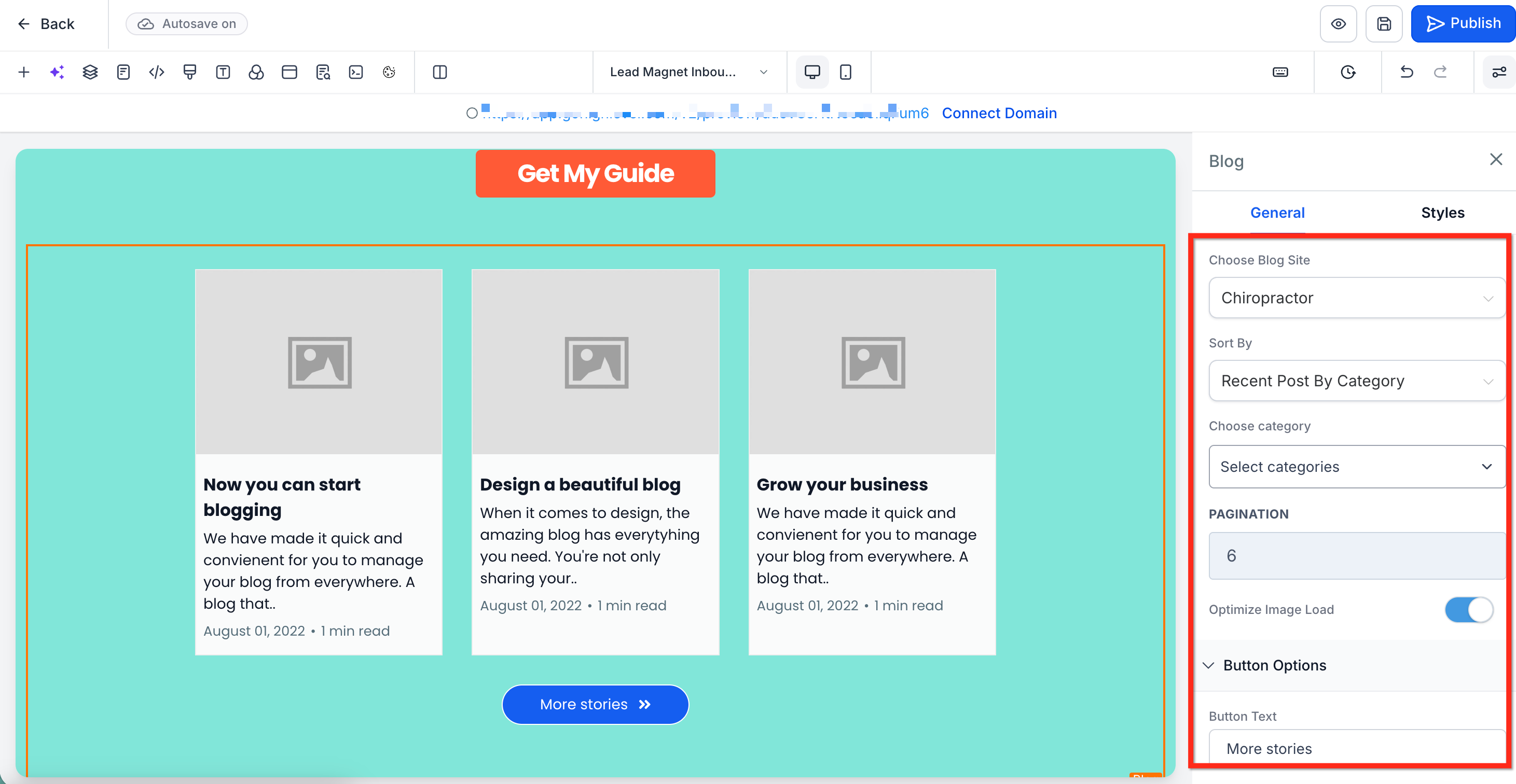
Click the element once it's placed to open its settings panel. You'll find:
- Display style — controls how the list looks (grid, list, cards, etc., depending on the template).
- Blog source — which blog to pull posts from, if your account has more than one.
- Sort order — choose between:
- Recent Posts — newest first, across the whole blog.
- Recent Posts by Category — newest first, filtered to one or more categories.
- Recent Posts by Author — newest first, filtered to a specific author.
- Category filter — pick which categories are eligible to appear, if you're not showing everything.
- Number of posts / pagination — how many posts display at once, and whether visitors can page through more.
- Button text and color — customize the "Read More" style call-to-action shown on each post card.
Tip: For a homepage or landing page, "Recent Posts" with a small count (3–4) usually works best — it keeps the page focused and shows visitors your blog is active without turning the page into a full article index.
Step 4: Publish
Save your element settings, then publish the page or funnel step as you normally would. The blog list won't update visitors until you publish.
Featuring a single post (hero/featured layout)
If you want to spotlight one specific article — a cornerstone guide, a launch announcement — rather than a rotating list, use a hero or featured-post layout. This pins one post (often the most recent, or one you choose manually) in a larger, more prominent card above the regular list. Configure it the same way: add the element, then look for a "Featured Post" or "Hero" toggle in its settings, and select which post to feature.
Note: A featured post is a display choice, not a status. Featuring a post doesn't change its category, author, or publish date — it only affects how it's presented on this particular page.
Adding category navigation and search
If you want visitors to browse by topic instead of just scrolling a list, add category navigation directly on your blog's own pages:
- From Sites > Blogs, open your blog and choose Edit the Site.
- In the element panel, find Category Navigation and drag it onto the page.
- Click each category link to set its name and connect it to the matching post category.
- If you want an on-page search box as well, look for a search toggle in the same site editor and switch it on.
Category navigation and search help visitors — and search engines — understand how your content is organized, which supports better SEO structure over time.
What "done" looks like
You know the setup worked when:
- The page or funnel step shows the correct posts, in the correct order, filtered the way you intended.
- Clicking a post card takes visitors to the full article on your blog.
- After publishing, the live page reflects any category or sort changes you made (you may need to republish after editing an existing element).
Related articles
- Blogs overview: how blogging works on the platform
- Create a blog and publish your first post
- Categories, authors, and organizing your blog
- Blog post SEO: titles, slugs, meta, and more
Frequently asked questions
Why isn't my Blog Posts element showing anything?
The most common cause is that your blog has no published posts — drafts and scheduled posts don't appear. Double-check post status, and confirm the element's blog source and category filters aren't accidentally excluding everything.
Can I show posts from more than one blog on the same page?
Not in a single element. If your account has multiple blogs, add a separate Blog Posts element for each blog and place them in different sections of the page.
Does the blog list update automatically when I publish a new post?
Yes — once the underlying element is published on a live page, it pulls posts dynamically based on your sort and filter settings. You don't need to re-edit the page every time you publish a new article, unless you're changing the element's configuration itself.