
Social Planner overview: connect, plan, and publish from one calendar
What Social Planner does, which accounts it supports, the calendar and list views, and what each post status means.
Social Planner is the platform's home for social media: connect your business accounts once, then draft, schedule, publish, and track posts across every channel from a single calendar instead of logging into each network separately.
What Social Planner does
Instead of switching between apps to post the same update everywhere, you write a post once in Social Planner, pick which connected accounts should receive it, and either publish it right away or schedule it for later. The platform keeps a running history of everything you've posted — drafts, upcoming posts, published posts, and anything that failed to go out — so you always have one place to check on your social presence.
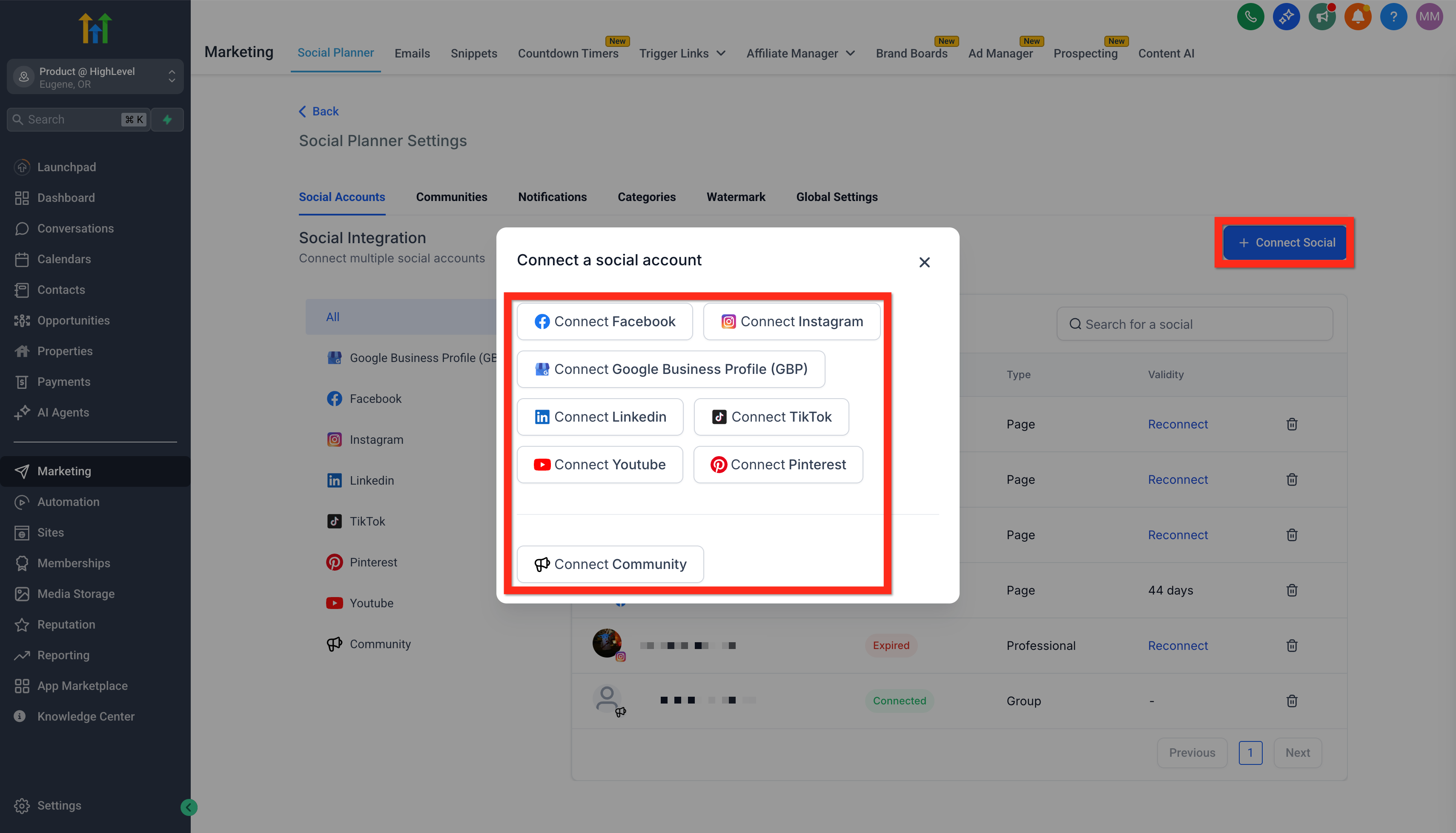
Supported accounts
Social Planner connects to:
- LinkedIn — personal profiles and company pages
- Meta — Facebook Pages and Instagram business accounts (connected through Facebook)
- YouTube — a channel you own or manage
- Google Business Profile — one or more business locations
You can connect more than one account per platform — for example, several Facebook Pages or multiple Google Business Profile locations — and choose which ones a given post goes to when you compose it.
Calendar and list views
Social Planner shows your content two ways:
- Calendar view — a week or month grid so you can see at a glance what's going out and when, spot gaps in your posting schedule, and drag posts to a new date.
- List (Planner) view — a scrollable list of posts grouped by status (drafts, scheduled, published, failed), which is faster for scanning a large backlog or filtering down to one platform or account.
Both views pull from the same underlying posts, so switching between them doesn't change anything about your content — it just changes how you're looking at it. Use the calendar when you're planning ahead and the list when you're auditing what's already queued up or troubleshooting something that didn't go out.
Post statuses
Every post in Social Planner sits in one of these states:
| Status | Meaning |
|---|---|
| Draft | Saved but not scheduled. Nothing will publish until you set a time or post it manually. |
| Scheduled | Has a publish date and time set and is waiting to go out. |
| Pending approval | Submitted for review by a teammate before it can publish (see the composer article for how approval flows work). |
| Published | Successfully posted to the selected account(s). |
| Failed | The platform rejected the post or the connection had a problem. Failed posts stay visible so you can fix the issue and retry — see the troubleshooting article for common causes. |
Tip: Check the Planner list view's Failed filter periodically, especially after connecting a new account. A failed post doesn't retry itself — you need to fix the underlying issue and republish it.
Why accounts sometimes need reconnecting
Each connected account relies on a permission token issued by that network (Facebook, LinkedIn, Google, etc.). These tokens can expire or get revoked — for example, if someone changes a password, removes app access on the network's own settings page, or the network updates its permission requirements. When that happens, scheduled posts for that account can't publish until you reconnect it. Social Planner will flag an account that needs attention; the connection article in this section covers exactly how to reconnect each platform.
What done looks like
You should be able to open Social Planner, see which accounts are connected for each supported platform, switch between calendar and list view without losing your place, and recognize at a glance whether a given post is a draft, scheduled, published, or failed.
Related articles
- Connect your social accounts
- Create, schedule, and publish posts
- Plan content with categories, the calendar, and bulk scheduling
- Troubleshoot social posting
Frequently asked questions
Do I need to connect every platform to use Social Planner?
No. Connect only the accounts you actually use. Any platform you haven't connected simply won't appear as an option when you compose a post.
Can I use Social Planner without a calendar view?
Yes — the list (Planner) view shows the same posts without the grid, which some people find faster for daily use once they're used to the tool.
Does deleting a scheduled post remove it from the social network too?
Only if it hasn't published yet. Deleting a scheduled or draft post in Social Planner just removes it from the queue. Once a post has published, removing it from the social network itself has to be done on that network directly.