
Connect your social accounts
Step-by-step connection instructions for LinkedIn, Facebook Pages, Instagram, YouTube, and Google Business Profile, plus how to reconnect an expired account.
Before you can schedule or publish anything, Social Planner needs permission to post on your behalf. Each network has its own connection flow and its own rules about who's allowed to authorize it — this article walks through each one.
Before you start
For every platform, connect using an account (or login) that has admin, owner, or posting permission on the page, profile, or channel you want to manage. Connecting with a login that only has partial or viewer-level access is the single most common reason a connection looks successful at first but then fails to post later.
Connect LinkedIn (profile or company page)
LinkedIn integration lets you connect either a personal profile or a company page, and you can connect more than one of either.
- Go to Marketing > Social Planner.
- In the Social Accounts tab, click + Connect Social.
- Select Connect LinkedIn.
- Sign in with the LinkedIn login that has admin access to the company page (or is the profile) you want to connect, and approve the requested permissions.
- Confirm the profile or page now appears in your connected accounts list.
Note: If you also plan to use this LinkedIn connection for ad-related features, make sure the login has Super Admin or Campaign Manager access on the associated ad account — otherwise that account may not show up later inside Social Planner.

Connect Facebook Pages
Personal Facebook profiles can't be connected directly — only Pages. Sign in with a Facebook login that has admin access to every Page you want to manage.
- Go to Marketing > Social Planner and click the Settings gear icon.
- Select Connect a new Facebook page.
- Click Continue to authorize access to your Facebook Pages.
- Choose which Page(s) to connect from the list Facebook shows you.
- Confirm the Page(s) now appear in your connected accounts.

Warning: When Facebook's permission screen asks which Pages to share, grant access to all of your Pages, not just the one you're connecting today — even ones you don't plan to use yet. If you reauthorize later and only select a subset, Facebook silently revokes the token for any Page left out, and posts to that Page start failing with a permission error even though nothing changed on your end.
Connect Instagram (business account, via Facebook)
Instagram accounts connect through Facebook, so an Instagram business (or creator) account must already be linked to a Facebook Page you manage.
- Follow the Facebook Pages steps above first if you haven't already connected the linked Page.
- From + Connect Social, choose Instagram.
- Sign in with Facebook and approve the permissions — Social Planner will list the Instagram business accounts tied to your Facebook Pages.
- Select the account(s) to connect.
Note: If your Instagram account doesn't show up as an option, confirm it's actually a Business or Creator account (not a personal account) and that it's properly linked to a Facebook Page where you have admin access. Personal Instagram accounts can't be connected.
Connect YouTube
YouTube connects through your Google account.
- Go to Marketing > Social Planner and click + Connect Social.
- Choose YouTube and connect through Google Integrations.
- Sign in with the Google account that owns the channel. Your channel will appear in the list — or you'll see the option to create one if you don't have a channel yet.
Warning: Only the channel's primary owner can authorize this connection. If you only have Manager or another delegated role on a YouTube channel, you can't connect it through Social Planner — that's a restriction on YouTube's side, not a platform limitation. Managers can still post directly through YouTube Studio.
Once connected, the YouTube token doesn't expire on a fixed schedule — it stays active until you or Google manually revoke it, which makes YouTube one of the more stable connections to maintain.
Connect Google Business Profile
Google Business Profile connects once and that same connection can be reused elsewhere in the platform (Reputation and Listings tools), so you don't need to re-authorize separately for each feature.
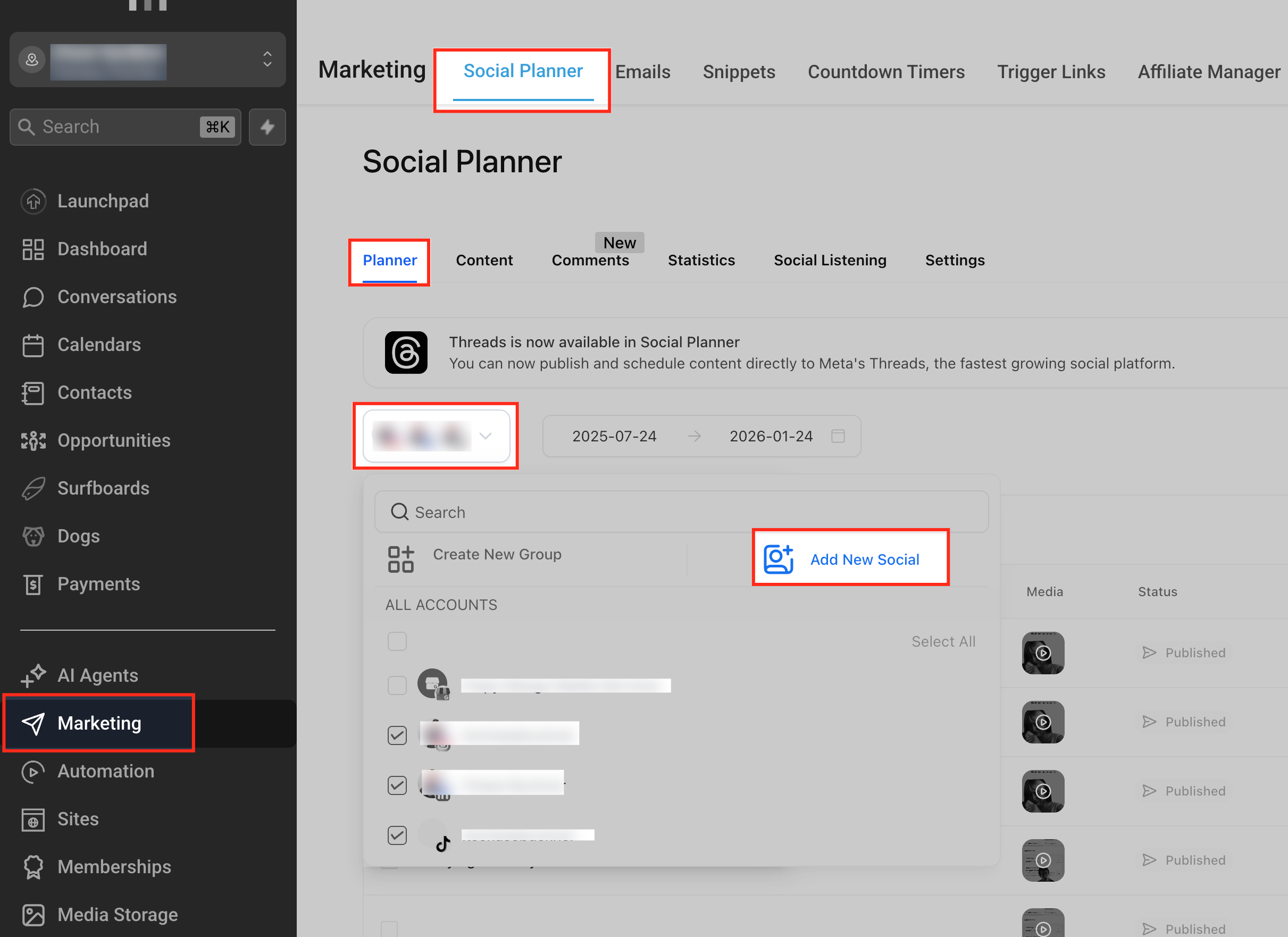
- Go to Marketing > Social Planner, make sure the Planner tab is active, and use the account dropdown to confirm you're in the right location.
- Click Add New Social, then select Connect GBP.
- Choose the Google account associated with your business profile.
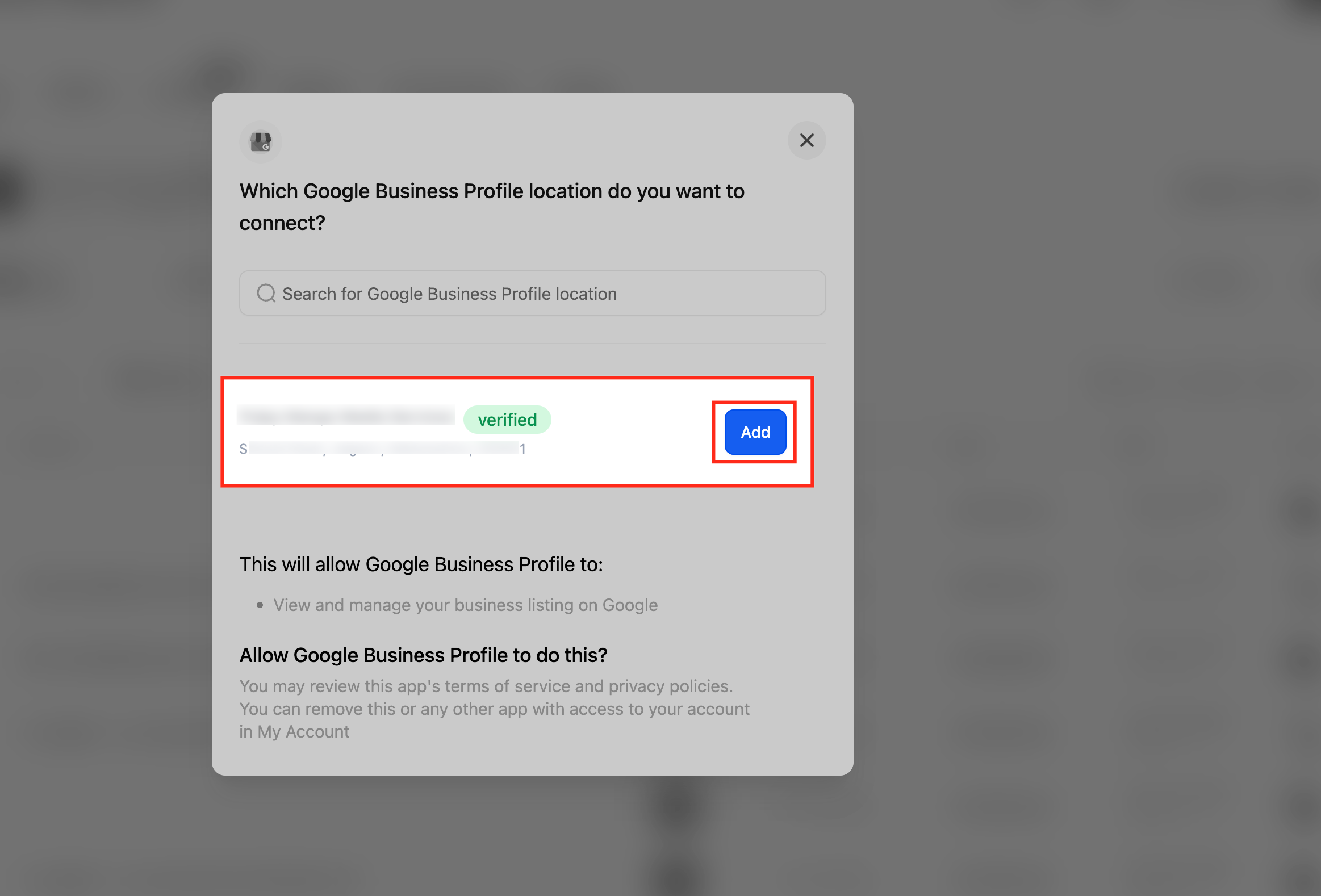
- Select the correct business location from the list Google returns, then click Add.
Note: If your Google account manages more than 10 locations as part of a chain, Google's Local Post API may be disabled for that location and you'll see an error saying the location can't be added. This is a Google-side restriction on chain accounts, not something reconnecting will fix.
Reconnecting an account whose token expired
Every connected account depends on a permission token from that network, and tokens can expire, get revoked, or lose scope — for example, if a password changes, someone removes app access from the network's own security settings, or the network updates what permissions it requires. When that happens, Social Planner flags the account and any posts scheduled to it can't publish until it's reconnected.
To fix it:
- Open Marketing > Social Planner > Settings and find the flagged account (it will show a disconnected or expired status).
- Click to reconnect, and sign in again with a login that still has admin or posting access.
- Re-approve the requested permissions. For Facebook specifically, if you're adding new Pages to an existing connection, first remove the app from Facebook Settings > Business Integrations, then reconnect from scratch — otherwise Facebook may not offer you the full list of Pages again.
- Once reconnected, any posts that were stuck as failed can be edited and republished.
What done looks like
Each platform you plan to use shows a healthy, connected status in Social Planner's Social Accounts list, connected through a login with real admin or posting access — not a viewer-level account that will fail silently later.
Related articles
Frequently asked questions
Can I connect the same Facebook Page to two different accounts?
No — a given Page, profile, or channel can only be actively connected through one Social Planner connection at a time. Connecting it elsewhere will typically disconnect the earlier one.
Why did my Instagram connection disappear even though I didn't touch it?
This usually happens when the linked Facebook Page's token gets revoked or reauthorized without Instagram's permission included. Reconnect the Facebook Page first (granting access to all Pages), then reconnect Instagram.
Does reconnecting an account cancel my already-scheduled posts?
No. Reconnecting restores the account's ability to publish — it doesn't touch your existing scheduled or draft posts. Anything that had failed specifically because of the disconnected token can usually be republished once the connection is restored.