
Sitemaps, robots, canonical URLs, and indexing
How the platform generates sitemaps, how to submit them to Search Console, and how to control what search engines index with robots and canonical settings.
Search engines can't index pages they don't know exist, and they can rank the wrong version of a page if you have near-duplicate content without telling them which one is authoritative. Sitemaps, robots settings, and canonical URLs are the three technical controls that solve those problems. None of them require code — they're account and page settings — but they're easy to skip because they don't have an obvious visible effect the way a headline or image does.
XML sitemaps
A sitemap is a file listing every URL on your site that you want search engines to find and crawl. Without one, search engines rely purely on following links to discover your pages, which can miss pages that aren't well linked internally.
Where to create one
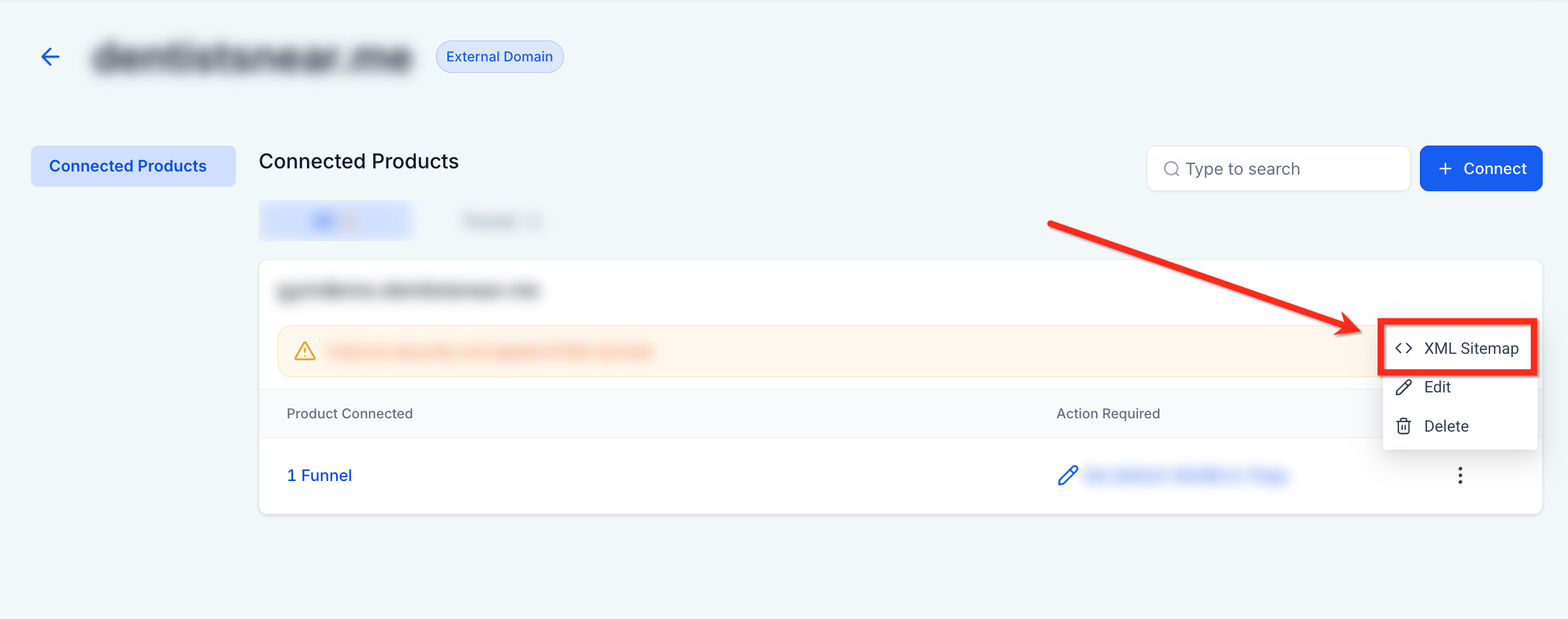
Sites > Settings > Domains, select a domain, choose Manage, then click the XML Sitemap action.
From there you can:
- Select which connected websites and funnels to include
- Choose specific pages, or include a whole site/funnel
- Set a custom path for the sitemap URL (the default is typically
sitemap.xml) - Create multiple sitemaps if you want to group content separately — for example, one for your main site and a separate one for a large blog
- Add, edit, or delete existing sitemaps as your site changes
Tip: Blogs generally handle their own sitemap automatically — every time you publish a post, the blog's sitemap updates itself, so you don't need to manually add each new post.
Submitting your sitemap to Google
Creating a sitemap doesn't automatically tell Google about it — you need to submit it:
- Add your domain as a property in Google Search Console (search.google.com/search-console) if you haven't already.
- Verify domain ownership (Search Console walks you through this — typically a DNS record or meta tag).
- Go to the Sitemaps report in Search Console.
- Enter your sitemap URL (for example,
yourdomain.com/sitemap.xml) and submit.
As an alternative or backup, you can also reference your sitemap's path inside your robots.txt file — search engines that crawl robots.txt will pick up the sitemap reference even without a manual submission, though Search Console remains the more reliable and trackable method.
Robots.txt and noindex
Robots.txt is a file every site has (whether or not you've touched it) that tells search engine crawlers which parts of your site they're allowed to access. Most of the time you won't need to edit it directly — the platform manages it — but you should know it exists, especially if a page mysteriously isn't getting indexed.
Disabling indexing for a page or site
If you want to keep a page (a staging version, an internal tool, a duplicate test page) out of search results entirely, use the platform's Disable SEO Indexing setting rather than trying to hand-edit robots.txt. This applies both noindex/nofollow meta tags to the page and adjusts robots.txt rules so search engines skip it.
Warning: Disabling indexing is easy to forget you've turned on. If a page you actually want ranked isn't showing up in search results months after launch, check whether indexing was disabled for it — this is a common, hard-to-spot cause of "why isn't this page ranking at all."
Canonical URLs
A canonical URL tells search engines "when you see content that looks similar across multiple URLs, treat this URL as the authoritative version." It prevents your own near-duplicate pages from competing against each other in search results and diluting your ranking signal.
When to use one
- The same or similar content is reachable at more than one URL (a category page and a filtered version of it, for example)
- You've syndicated content to another domain and want search credit to stay with the original
- You have multiple blog posts covering very similar topics and want one to be treated as primary
Where to set it
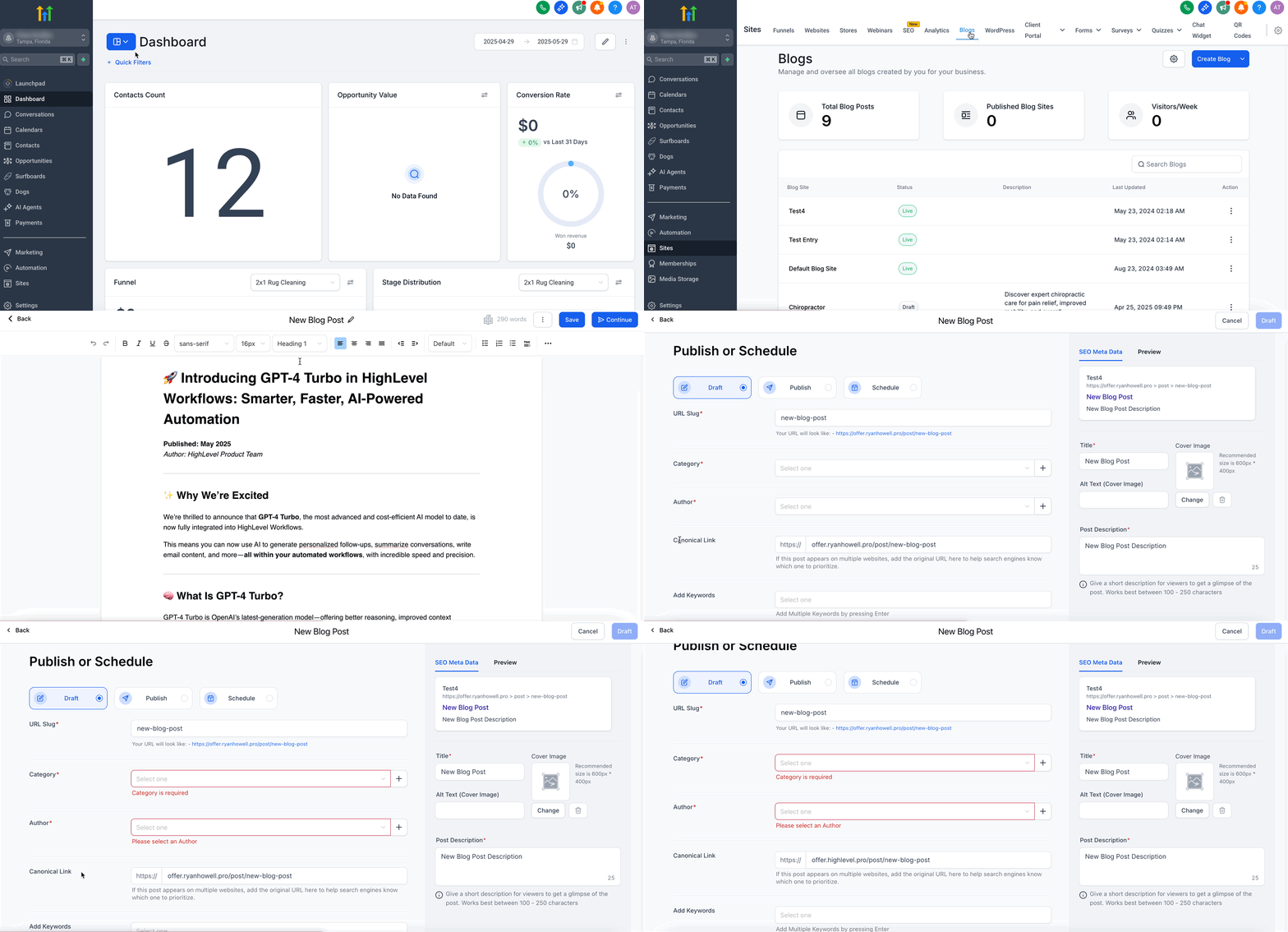
- Blog-level default: Sites > Blogs, select your blog, then Canonical Links.
- Per post: when creating or editing a post, continue through to the post's settings and set the Canonical Link field there — this overrides the blog-level default for that one post.
Best practices
- Always use the full, absolute URL (
https://example.com/page, not/page). - Make sure the canonical URL you're pointing to actually exists and loads — a canonical pointing to a broken or redirected URL confuses search engines rather than helping them.
- Don't point every page's canonical at your homepage "just in case." Only use it for genuine duplicate or near-duplicate situations — over-applying canonicals can suppress pages you actually wanted indexed separately.
- Keep the canonical page and any alternate versions as close to identical in content as reasonably possible; a canonical is a strong hint, not an absolute override, and search engines can disregard it if the pages are too different.
Diagnosing indexing problems
If a page isn't appearing in search results, or search engines seem to have indexed the wrong version of a URL (a common issue with funnel pages that pick up random query parameters), work through this order:
- Confirm the page is published, not a draft.
- Check whether indexing has been disabled for that page.
- Check the page's canonical URL — if it points somewhere else, that's likely where search credit is going instead.
- Confirm the page is included in your sitemap.
- Use Google Search Console's URL Inspection Tool to see exactly how Google currently sees the page, and request indexing if it looks correct but hasn't been crawled yet.
- If you're seeing duplicate URL variations (extra query parameters or trailing characters), that's often a sign the canonical isn't set, or an old redirect is generating unexpected paths — see URL redirects and changing page paths without losing rankings.
What done looks like
- A sitemap exists for each domain, covers the pages you want indexed, and has been submitted in Google Search Console.
- No page you actually want ranked has indexing accidentally disabled.
- Canonical URLs are set wherever you have genuine duplicate or near-duplicate content, and each one points to a real, working page.
- You've run at least one important page through Search Console's URL Inspection Tool to confirm it's indexed as expected.
Related articles
- URL redirects and changing page paths without losing rankings
- Page titles, meta descriptions, and Open Graph
- Generate schema markup with AI for funnel and website pages
- SEO and AEO on the platform: an overview
Frequently asked questions
Do I need a sitemap if my site is small?
It helps regardless of size, but it matters more as your site grows or if pages aren't well linked internally. For a five-page site with clear navigation, search engines will likely find everything anyway — a sitemap just removes the guesswork.
What's the difference between disabling indexing and deleting a page?
Disabling indexing keeps the page live and accessible by direct link, just hidden from search results. Deleting removes the page entirely. Use disabling for pages you want to keep around but not surface in search (internal tools, duplicate test pages); use deletion, paired with a redirect, for pages you're retiring for good.
My canonical URL points to a page that no longer exists. What happens?
Search engines will generally ignore a canonical pointing to a broken or missing page and fall back to treating the original page as its own canonical — but this is an unreliable fallback. Fix or remove the canonical reference as soon as the target page is retired.
How often should I resubmit my sitemap?
You don't need to manually resubmit every time you add a page — once a sitemap is submitted, search engines revisit it periodically on their own. Blog sitemaps in particular update and get recrawled automatically as you publish. Resubmitting is mainly useful after a large structural change, like a domain migration or a big batch of new pages.