
Generate schema markup with AI for funnel and website pages
Use the built-in AI schema generator to create structured data for any page in a few clicks, then review, edit, and publish it.
Schema markup is a small block of structured data hidden in a page's code that tells search engines and AI assistants exactly what the page is about — a local business, a product, an article, a service — in a format machines can parse reliably instead of guessing from plain text. The platform includes an AI generator that builds this markup for you from your page content, so you don't need to know JSON-LD syntax to get the benefit. This is the single most useful SEO tool in the platform, and it's worth doing for every important page.
Tip: Not sure which schema type fits your page? Read Schema markup types explained and when to use each first, then come back here to generate it.
Where it lives
The schema builder is part of the page editor, not a separate area of the account. Open the page you want to mark up and find it under the SEO tools for that page:
Sites > Funnels (or Sites > Websites) > Edit the page > SEO & AI search optimization > Schema Markup
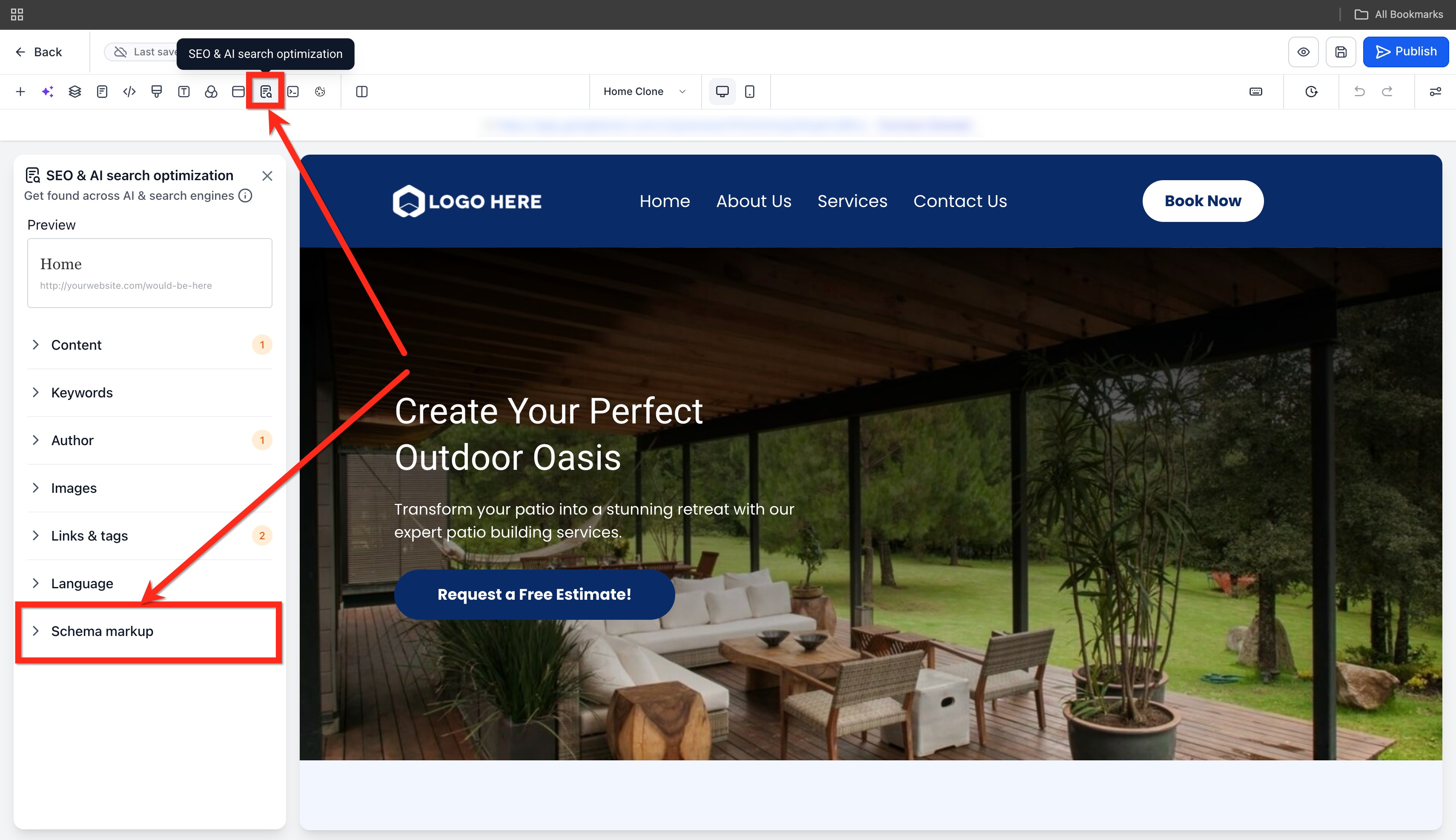
Page-level, not site-level
This is the most important thing to understand before you start: schema markup applies to one page at a time. There is no "set it once for the whole site" option. If you add LocalBusiness schema to your homepage, your services page still has none until you add it there too.
Warning: Schema does not carry over automatically between pages or funnel steps. Plan to generate and review schema separately for every page you care about — homepage, key service or product pages, your contact page, and any landing pages you run traffic to.
What it can generate
The AI generator isn't limited to a short list of preset types — it reads your page content and can produce any valid schema.org type that fits what the page actually contains. In practice, most businesses end up using a handful of types repeatedly:
- LocalBusiness — for a business with a physical location or service area
- Organization — for a company that isn't location-based
- Product — for an item you sell
- Service — for a service you offer
- FAQPage — for a page with a visible list of questions and answers
- Article / BlogPost — for blog and article content
- BreadcrumbList — for page navigation hierarchy
- WebSite — site-wide identity, sometimes paired with a sitelinks search box
See the full breakdown with examples in Schema markup types explained and when to use each.
Step-by-step: generating schema with AI
- Open the page in the editor and click Edit.
- Go to SEO & AI search optimization > Schema Markup.
- Click + New Schema, then choose Create with AI.
- In the prompt box, describe what you want in detail. The more specific you are, the better the result — mention the business type, the key facts you want included (hours, price range, service area), and the schema type if you already know which one fits.
- Click Send Message.
- The AI reads the page content and your prompt, then generates the markup.
The schema chat panel with a prompt entered and AI-generated schema shown in the response
Example prompt
"Generate LocalBusiness schema for this page. We're a dental practice at 123 Main St, Springfield. Include our phone number, hours (Mon–Fri 8am–5pm), and price range ($$)."
Reviewing what it generated
Don't publish without checking the output. The interface gives you two ways to inspect it:
- Form view — a friendlier, field-by-field display. Note that form view can hide some fields depending on the schema type, so it may not show everything that was generated.
- JSON view — the raw JSON-LD. Switch here if you want to see every property the AI included, or if you want to verify exact wording (like your business hours or address) matches reality.
Click View Schema Markup to open either view.
Warning: AI-generated schema can include plausible-sounding but incorrect details — a wrong phone number format, an assumed price range, or a business type that's close but not quite right. Always check names, addresses, phone numbers, hours, and prices against your actual business information before saving.
Editing the result
You don't have to start over if something's off. Use the same chat window to refine it conversationally — describe what to change and the AI will update the markup:
- "Remove the price range, we don't want to publish that."
- "Add our Saturday hours, 9am to 1pm."
- "Change this to Service schema instead of Product."
The chat lets you add, modify, and delete individual schemas in the same session.
Validate and save
Once the markup looks right:
- Click Validate and Save.
- Confirm the schema now appears under Active Schemas for that page.
- Publish the page — schema only goes live once the page itself is published, same as any other content change.
The Active Schemas list showing a saved LocalBusiness schema entry
Double-check with an outside validator
The platform's built-in "Validate" step checks that the markup is syntactically correct JSON-LD. It's worth also running the published page through an independent tool to see how search engines will actually interpret it:
- Google's Rich Results Test (search.google.com/test/rich-results) — shows whether your page is eligible for rich results and flags missing recommended fields.
- Schema Markup Validator (validator.schema.org) — a general-purpose validator against the full schema.org vocabulary, useful for types Google's tool doesn't cover.
Paste in your live page URL after publishing, not a draft — these tools fetch the page directly.
What done looks like
- The page has at least one schema type generated and saved under Active Schemas.
- You've opened the JSON view at least once and confirmed the business details are accurate.
- The page is published (not just saved as a draft).
- An outside validator (Rich Results Test or Schema Markup Validator) shows the markup parsing cleanly with no errors.
Related articles
- Schema markup types explained and when to use each
- Add custom JSON-LD or other head code manually
- Answer Engine Optimization: writing pages that AI assistants cite
- Page titles, meta descriptions, and Open Graph
Frequently asked questions
Does schema markup guarantee a rich result in search?
No. Valid schema makes your page eligible for rich results (star ratings, FAQ dropdowns, business info panels), but search engines still decide whether and when to show them based on relevance and their own quality signals.
Can I use the AI generator and then hand-edit the code?
Yes, indirectly — use the JSON view to see the exact markup, refine it further through the chat, or if you need something the AI tool can't produce, add it manually. See Add custom JSON-LD or other head code manually.
Do I need to regenerate schema every time I edit the page?
Not automatically, but you should revisit it whenever the page's core facts change — new hours, new pricing, a renamed service. Schema that contradicts the visible page content can hurt more than having none at all.
Will this work on funnel steps as well as website pages?
Yes — the schema builder is available on both Sites > Funnels and Sites > Websites pages, accessed the same way through each page's editor.