
Pop-ups, countdown timers, and forms on pages
How to add conversion elements — pop-ups, countdown timers, and forms — to a funnel or website page, and when each one helps rather than hurts.
Pop-ups, countdown timers, and embedded forms are the elements most directly responsible for turning a visitor into a lead or a sale. Used well, they focus attention on your offer. Used carelessly, they annoy visitors and hurt the exact conversion rate you're trying to improve. This covers how to add each one and how to use them without working against yourself.
Forms
A form is how you actually capture a lead's information — name, email, phone, or custom fields.
- Open the Add Element panel and drag a Form element onto the page.
- Choose an existing form to embed, or create a new one and design its fields.
- Set what happens on submission — usually a redirect to a thank-you page or step, and/or a confirmation message shown inline.
- Keep the field count as low as the offer allows. Every additional required field reduces completion rate; ask only for what you'll genuinely use in the next step (a name and email is often enough — save phone number, company size, and other details for later in the relationship unless you need them immediately).
- Style the form to match the page — button color and text matter more than people expect. "Submit" converts worse than a specific, benefit-driven label like "Get My Free Guide" or "Book My Call."
Tip: Test the form yourself after every edit. A misconfigured redirect or a broken required-field validation can silently block every submission without any visible error on the page.
Pop-ups
A pop-up shows an overlay on top of the page content, usually triggered by a delay, a scroll position, or an exit-intent action (the visitor's cursor moving toward the browser's close/back controls).
- Add a Popup element (sometimes managed separately from the main page builder, under a popups section of the funnel/website settings).
- Build the pop-up's content the same way as a page section — headline, short copy, a form or a single call-to-action button.
- Set the trigger:
- Time delay — appears after a set number of seconds on the page.
- Scroll depth — appears once the visitor scrolls a certain percentage down the page.
- Exit intent — appears when the visitor's behavior suggests they're about to leave (desktop only; exit-intent doesn't reliably work on mobile, since there's no cursor to detect).
- On page load — appears immediately (use sparingly; an instant pop-up before a visitor has seen any content tends to increase bounce rate).
- Make sure the close button is obvious and easy to tap on mobile — a pop-up visitors can't easily dismiss is one of the fastest ways to lose trust in a page.
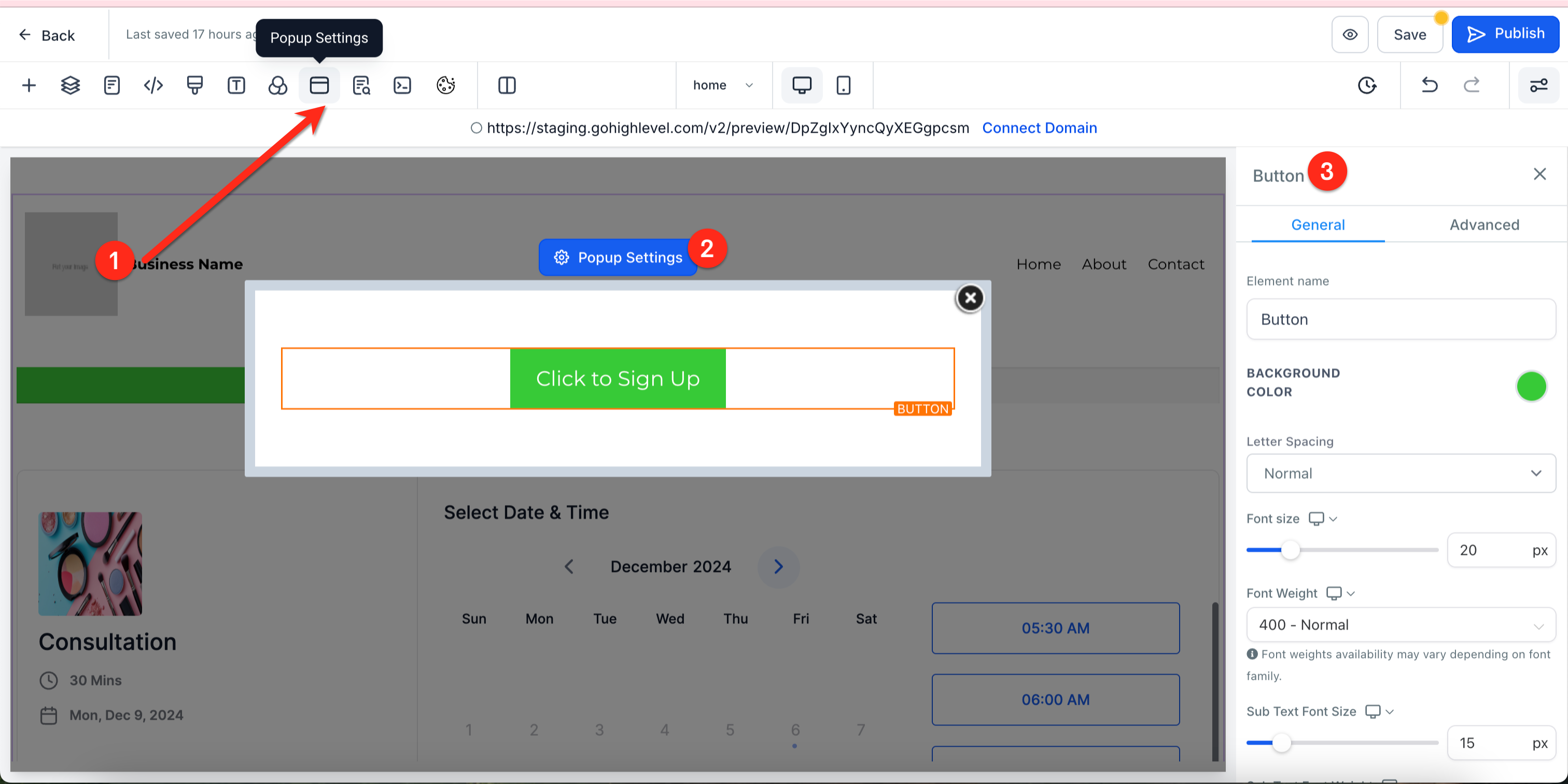
Warning: Use at most one pop-up per page. Stacking multiple pop-ups, or combining a pop-up with a sticky bar and a countdown timer all firing at once, overwhelms visitors and typically tanks conversion rather than helping it.
Countdown timers
A countdown timer creates urgency around a deadline — a sale ending, a bonus expiring, a limited number of spots.
- Add a Countdown Timer element from the Add Element panel.
- Choose a timer type:
- Fixed — counts down to one specific date and time, shared by every visitor (best for a real deadline like a sale ending Friday at midnight).
- Recurring — resets on a repeating schedule (e.g., every day at a set time), useful for an ongoing daily promotion.
- Dynamic/personalized — starts counting down individually from when a specific visitor first lands on the page or opens an email, rather than a shared clock.
- Place the timer somewhere visible without letting it dominate the page — near the headline or near the call-to-action button both work well.
- Style it to be legible at a glance: large enough numbers, clear labels (days/hours/minutes/seconds), and a color that stands out against its background.
Warning: Only use a countdown timer for a deadline that's actually real. A timer that resets every time a visitor reloads the page, or a "sale" that never actually ends, is easy for visitors to notice and damages trust in every other claim on the page.
Delaying an element's appearance
Beyond dedicated pop-ups, you can delay the appearance of any element on the page — a banner, a specific offer block, or a secondary form — using a visibility timer.
- Select the element you want to delay.
- Open its Visibility settings.
- Uncheck visibility for both desktop and mobile so it's hidden by default.
- Set the delay timer to the number of seconds after page load you want it to appear.
- Preview the page and wait out the delay to confirm it appears as expected.
Using these together without overdoing it
A page with a form, a countdown timer, and a single well-timed pop-up can work very well together — each reinforces the same offer and deadline. The failure mode is stacking too many attention-grabbing elements that compete with each other rather than support the same goal. A useful check before publishing: does every conversion element on this page point toward the same single action? If a pop-up promotes a different offer than the page's main form, pick one.
What done looks like
Your conversion elements are ready when:
- Every form has been test-submitted and correctly redirects or confirms.
- At most one pop-up is active per page, with a trigger that makes sense for the page (exit intent for a blog post, time delay for a sales page).
- Any countdown timer reflects a real, honest deadline.
- You've checked all of the above on mobile specifically, since pop-up behavior (especially exit-intent) and layout often differ from desktop.
Related articles
Frequently asked questions
Does exit-intent work on mobile?
Not reliably — there's no cursor to detect moving toward the browser controls. Use a scroll-depth or time-delay trigger for mobile visitors instead.
How long should a pop-up's delay be?
There's no universal number, but a common starting point is somewhere between 5 and 15 seconds, or a scroll-depth trigger instead, so the pop-up appears after a visitor has actually engaged with the page rather than the instant they land.
Can I show a different pop-up to visitors who already submitted a form?
Some builders support suppressing a pop-up or form for visitors who've already converted, tracked via a cookie or a tag on the contact. Check your pop-up's targeting/audience settings for this option before assuming it isn't available.