
Page settings and SEO meta
How to set a page's title, meta description, favicon, social share image, tracking code, and URL slug for search engines and social sharing.
Every page you publish — funnel step or website page — has a settings panel that controls how it shows up in search results, how it looks when shared on social media, and what tracking code runs on it. These aren't visible on the page itself, but they matter for how visitors find and trust the page before they ever click.
Where to find page settings
- Open the page or funnel step in the page builder.
- Look for a Settings (often a gear icon) near the top of the builder, separate from the section/element styling panels.
- This opens a panel covering the page's URL, SEO fields, social sharing image, and tracking code — distinct from the visual content you're editing on the canvas.
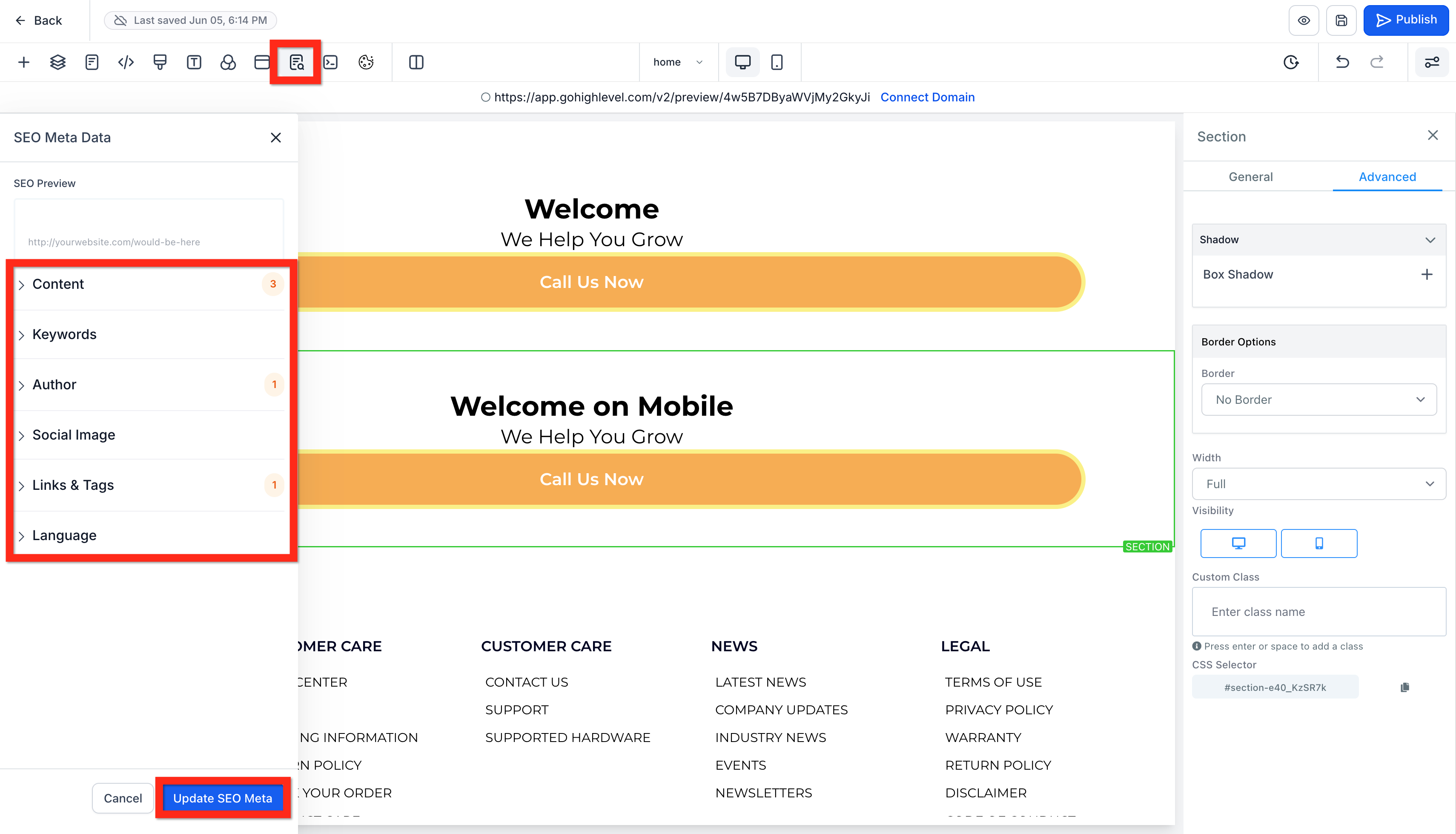
Page title and meta description
- Page title — appears as the clickable headline in search results and as the browser tab title. Keep it under about 60 characters so it doesn't get cut off, and lead with the most important words (what the page is about, and your business name if there's room).
- Meta description — the one to two sentences shown under the title in search results. Aim for roughly 150–160 characters. Write it like ad copy: state what the visitor gets and why they should click, rather than restating the page title.
Tip: Every page should have a unique title and description. Two pages sharing the same title and description confuses both search engines and visitors comparing tabs.
URL path / slug
The slug is the part of the URL after your domain — yourbusiness.com/spring-sale has the slug spring-sale.
- Keep it short, lowercase, and readable — words separated by hyphens, not spaces or underscores.
- Avoid changing a slug after a page has been live and shared for a while; the old URL will stop working unless you set up a redirect, and any links people have saved or shared will break.
- Match the slug to what the page is actually about —
spring-saleis far more useful thanpage-2for both visitors and search engines.
Favicon
The favicon is the small icon shown in a browser tab and in bookmarks.
- Favicon settings are usually set at the funnel or website level (applying across all its pages) rather than per individual page — check both places if you don't see it in a single page's settings.
- Upload a small square image, ideally 32×32 or 512×512 pixels, in PNG format.
- Save and refresh the live page in a new tab to confirm it shows correctly — favicons sometimes need a hard refresh or a fresh browser tab to display after being changed.
Social share image (Open Graph image)
When someone shares your page's link on social media, messaging apps, or in a chat tool, the preview card that shows up (headline, description, image) pulls from Open Graph settings, often labeled as a "social share image" or "OG image" in your page settings.
- In the page settings panel, find the social/Open Graph image field.
- Upload an image — a 1200×630 pixel image is the safe standard size across most platforms.
- Set the social title and description if the fields are separate from your SEO title/description (some builders let you customize these independently, which is worth doing if your SEO title is more formal than what reads well as a social post).
- Test the preview using a social platform's own debugging/preview tool after publishing, since browsers and some builders cache these images aggressively.
Note: If you skip this, most platforms fall back to a generic screenshot of the page or no image at all — which makes a shared link look far less trustworthy and gets fewer clicks.
Tracking code (header and footer)
Most page settings include a place to paste custom tracking or verification code — pixel scripts, analytics snippets, or search-engine verification tags.
- Header code typically loads before the page content — used for tracking pixels and analytics that need to fire as early as possible.
- Footer code typically loads after the page content — used for scripts that don't need to run immediately (some chat widgets, certain conversion pixels).
<!-- Example: a tracking pixel pasted into the header code field -->
<script>
  (function(){
    // vendor-provided tracking snippet goes here
  })();
</script>
Only paste code from sources you trust — tracking code runs with full access to the page, and a bad script can slow the page down or break its layout.
Warning: Header and footer code fields usually exist at both the individual page level and the funnel/website level. Adding the same tracking script in both places causes it to fire twice, which double-counts conversions and skews your analytics. Decide on one location per script and stick to it.
What done looks like
A page's settings are complete when:
- The title and meta description are unique, accurate, and within the recommended character lengths.
- The URL slug is short, readable, and final (not something you expect to change once traffic is flowing).
- A favicon is set at the funnel/website level and displays correctly in a browser tab.
- A social share image is set and previews correctly when the link is shared.
- Tracking code exists in exactly one place per script, and you've confirmed it fires by checking your analytics tool after a test visit.
Related articles
Frequently asked questions
Do I need different meta titles for every page, even in a funnel?
Yes. Even a funnel step that visitors reach by direct link (not search) benefits from a real title, since it controls the browser tab and any link previews shared before someone clicks through.
What image size should I use for the social share image?
1200×630 pixels is the widely-used standard and displays cleanly across most major platforms without awkward cropping.
Why isn't my new favicon or social image showing up after I published?
Both are commonly cached by browsers and by social platforms. Try a fresh private/incognito browser tab for the favicon, and use the social platform's own link-preview debugging tool to force it to re-fetch the image.