
Build a website
How to create pages, set up navigation, and use global sections like a shared header and footer when building a website.
A website in The Viking Stack is a set of pages connected by a shared navigation menu, header, and footer — the multi-page home base for your business, as opposed to a single-goal funnel. This walks through creating pages, wiring up navigation, and setting up the global sections that appear across your whole site.
Starting a website
- Go to Sites > Websites in the left-hand menu.
- Click + New Website.
- Choose Start from Scratch or pick a template. Templates are the faster path for most people — you get a homepage, a few interior pages, and a working header/footer already in place.
- Name the website internally (visitors don't see this name).
- If you started from a template, you'll land on the homepage with placeholder content already laid out in sections. If you started from scratch, you'll need to build the homepage's sections yourself — see Using the page builder.
Tip: Even if you plan to heavily customize the design, starting from a template is usually faster than a blank canvas — you inherit a sensible section structure (hero, features, testimonials, footer) and just replace the content.
Adding pages
- From the website's page list, click + Add Page.
- Give the page a name and a URL path/slug (e.g.,
about-usbecomesyourdomain.com/about-us). See Page settings and SEO meta for more on slugs. - Choose to start the new page from a blank layout, duplicate an existing page, or use a saved section/template if your account has one.
- Build the page content in the page builder.
- Publish the page individually — like funnel steps, each page needs its own publish action.
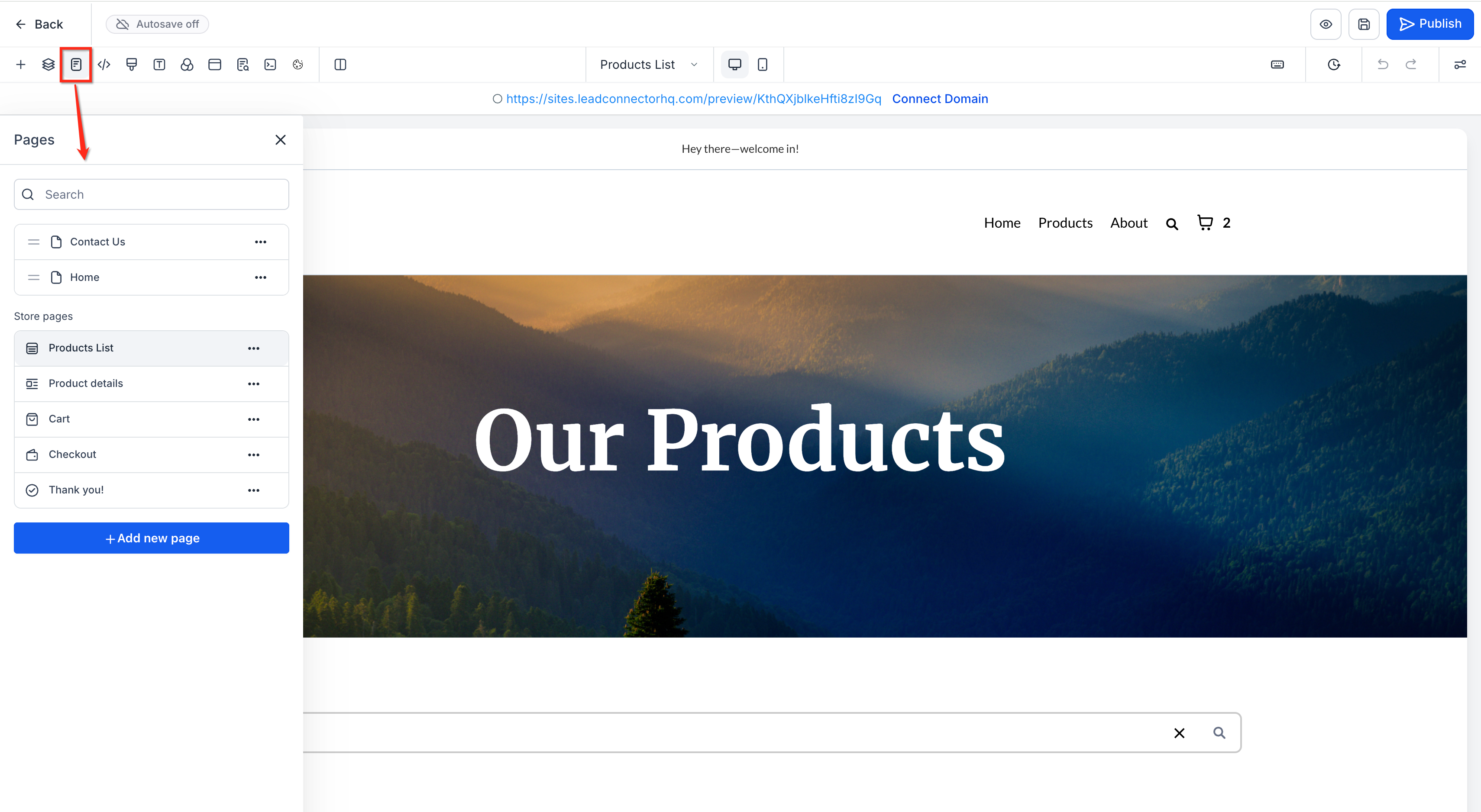
Repeat for every page your site needs. A typical small-business website runs 4–8 pages: Home, About, Services (or Products), Pricing, Contact, and a Blog index if you're publishing content.
Setting up the navigation menu
The navigation menu is what turns a pile of separate pages into a connected website.
- Open the website's navigation/menu settings (often found in the site's global settings or by editing the header section directly).
- Add a menu item for each page you want visitors to reach directly — you don't have to list every page (a thank-you page, for instance, usually shouldn't appear in the menu).
- Set the label text for each menu item (this can differ from the page name — "Services" as a label even if the page is internally named "Our Services Overview").
- Set the order of menu items by dragging them.
- If your site has enough pages to need grouping, create a category/dropdown in the navigation menu and nest related pages under it (e.g., a "Services" dropdown containing three individual service pages).
- Save and preview the menu on both desktop and mobile — mobile usually collapses into a hamburger menu, and it's worth confirming every item still works in that collapsed view.
Note: Keep your top-level navigation short. Five to seven items is a good target — more than that and visitors struggle to scan it, especially on mobile.
Global sections: header and footer
Most website templates come with a global header and global footer — sections that appear identically on every page and only need to be edited once.
- Header typically contains your logo, the navigation menu, and often a call-to-action button (e.g., "Book a Call" or "Get a Quote").
- Footer typically contains contact information, secondary links (privacy policy, terms), social icons, and sometimes a newsletter signup.
Editing a global section updates it everywhere it's used:
- Open any page that uses the global header or footer.
- Click into the header or footer section — it should be marked as "global" in the builder.
- Edit the logo, menu, colors, or buttons as needed.
- Save. The change applies across every page using that global section — you don't need to repeat the edit on each page.
Warning: Because global sections update everywhere at once, double-check before making a sweeping change (like swapping the logo or changing header colors) that you're editing the right global section, especially if your account manages multiple websites or funnels.
If you want one page to look different from the rest — a standalone landing-style page with no header — most builders let you unlink that page from the global header/footer in its individual page settings.
What done looks like
Your website is ready to share when:
- Every planned page exists, has real content (not placeholder text), and is published.
- The navigation menu lists the pages visitors actually need, in a sensible order, and works correctly on mobile.
- The header and footer are consistent across the site and contain accurate contact details and links.
- You've clicked through the site as a visitor would — clicking every nav item, checking every page loads, and testing on a phone.
Related articles
- Funnels vs. websites: which to use and how they work
- Using the page builder
- Connect a custom domain
- Page settings and SEO meta
Frequently asked questions
Can I have more than one website in my account?
Most accounts can create multiple websites, which is useful if you run more than one distinct brand or business unit. Check your plan for any limits.
Do I need a blog page?
Only if you plan to publish articles regularly. An empty or stale blog page can hurt credibility more than having no blog link at all — add it to the navigation once you have a few posts ready.
Can I reuse a section (like a testimonials block) across multiple pages without making it global?
Some builders support saved/reusable sections that you can drop onto multiple pages and update independently, separate from a fully global header/footer. Check your section's options for a "save as reusable" or "save as template" action.