
Build and save a smart list
Step-by-step: create filters, combine them with AND/OR, choose your columns, set sorting, save the list, and share it with your team.
Building a smart list takes a few minutes once you know the pieces: pick your filters, decide how they combine, choose what columns show up, set a sort order, and save it somewhere your team can find it. This walks through each step.
Step 1: Start a new smart list
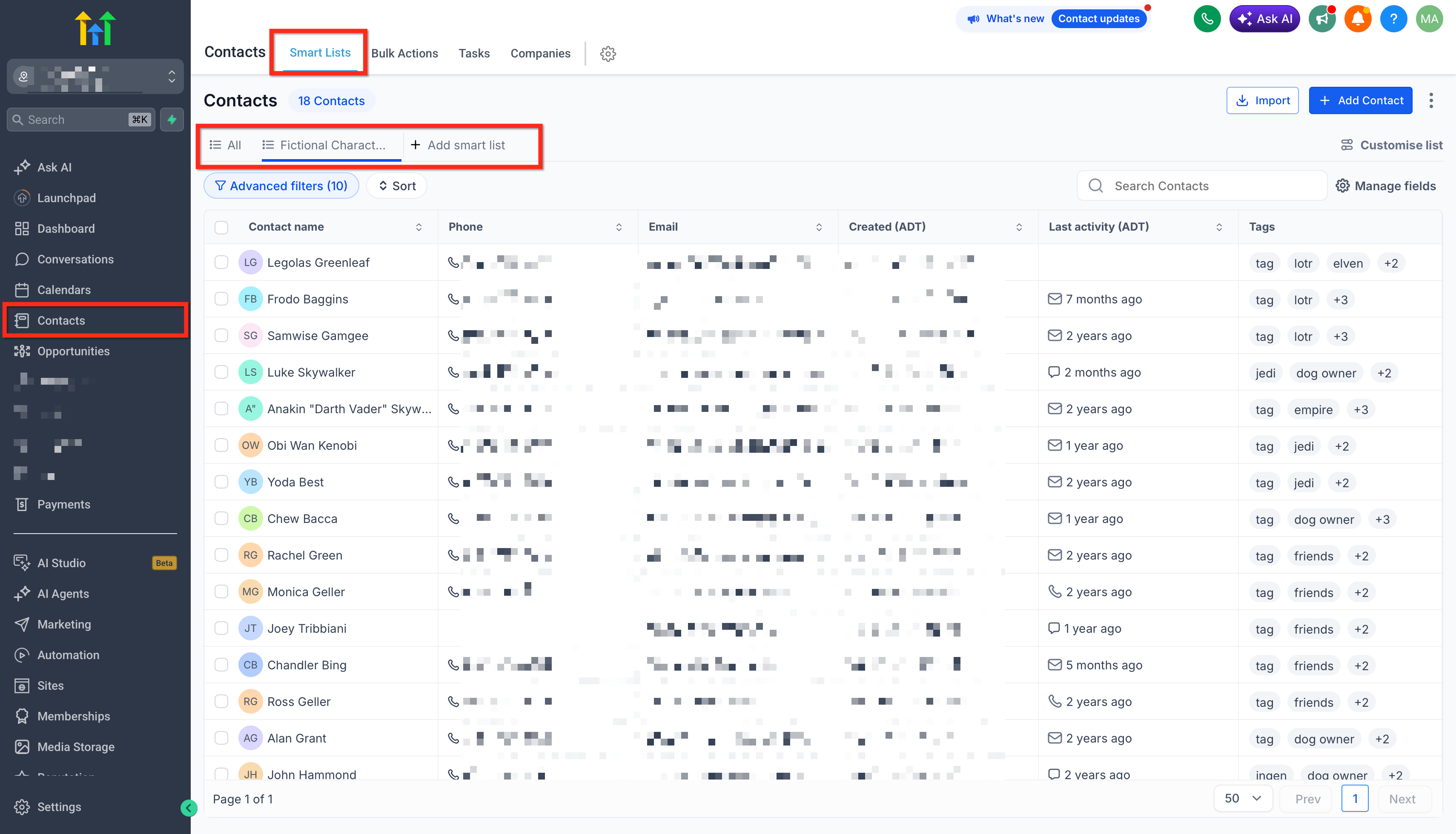
- Go to Contacts > Smart Lists.
- Click + Add Smart List.
- Give it a clear, specific name — "Hot leads, no contact 14+ days," not "List 3." Anyone on your team should understand what the list contains from the name alone.
Step 2: Add your first filter
- Open the filter dropdown and pick a field to filter on — a tag, a custom field, an activity date, a pipeline stage, anything available on the contact.
- Choose the operator (is, is not, contains, is before, is empty, and so on — the available operators depend on the field type).
- Enter the value and click Apply.
Step 3: Add more filters and choose AND or OR
To narrow the list further, add a second filter and choose AND — the contact must now match both conditions. To broaden it instead ("any of these tags"), group filters with OR. A common pattern is: group a few OR conditions together (say, three different tags meaning roughly the same thing), then AND that whole group against a stricter condition like an activity date.
Tip: Build the list in stages and check the result count after each filter. If adding a filter drops the count to zero, that filter (or its combination with an earlier one) is probably too strict, or two filters are contradicting each other.
Step 4: Choose your columns
Once your filters are set, control what the list actually displays:
- Click into the column settings and check the fields you want visible — name, email, phone, the specific tag or custom field you're segmenting on, last activity date, whatever's relevant to why you built this list.
- Drag columns to reorder them so the most important information is leftmost.
- Hide anything irrelevant. A smart list built to check "who's missing a phone number" doesn't need eight unrelated columns cluttering the view.
Your column layout and visibility choices are remembered the next time you open the list, so you only need to set this up once.
Step 5: Set a sort order
Click a column header to sort by it — ascending or descending. Sorting by "last activity date" ascending, for example, puts your most-neglected contacts at the top, which is usually exactly what you want when the list exists to drive follow-up.
Step 6: Save the list
Click Create (or Save, if you're editing an existing smart list). The list is now available under Contacts > Smart Lists any time you or a teammate needs it — it isn't a one-time report, it's a permanent, self-updating view.
Step 7: Share it with your team
By default, a new smart list may be visible only to the person who created it. To make it useful across your team:
- Use the share option to make the list visible to specific admins or teammates.
- Or push it to the full account so every user can see and use it — appropriate for lists that represent a standing process (like "needs follow-up today") rather than a one-off personal check.
The smart list filter builder combining an AND group with a tag filter, with the share icon visible
What "done" looks like
A finished smart list has: a name that explains itself, filters that produce a result count you'd expect, columns that show only what matters for its purpose, a sort order that puts the most actionable rows first, and the right visibility so the people who need it can find it. If you have to explain what a smart list is for every time someone asks, go back and fix the name and column choices rather than explaining it verbally each time.
Related articles
- What smart lists are and how filters work
- Practical smart list recipes
- Bulk add to workflow, add/remove tags, and export
Frequently asked questions
Can I edit a smart list after saving it?
Yes — open it, adjust filters, columns, or sorting, and save again. Changes apply immediately; there's no need to rebuild the list from scratch.
Is there a limit to how many filters I can combine?
There's no meaningful limit for typical use, but a smart list with a dozen stacked filters is usually a sign the segment should be split into two clearer lists instead.
Can I run a bulk action directly from a smart list?
Yes. Selecting contacts within a smart list and choosing a bulk action applies that action only to the contacts currently matching your filters — see Bulk actions overview.