
Bulk actions overview
How to select contacts and run an action across all of them at once, how pacing and scheduling work for large sends, and where to check status.
Working through hundreds or thousands of contacts one at a time isn't realistic. Bulk actions let you select a group of contacts — from your full list or from a smart list — and apply one action to all of them in a single operation: tag them, add them to a workflow, message them, export them, or delete them.
Selecting contacts for a bulk action
- Go to Contacts, or open a smart list you've already built.
- Check the box next to each contact you want to include, or use select all to grab everyone matching the current view (your smart list filters, or an unfiltered full list).
- Click Bulk Actions (or the More menu, depending on where you're working) and choose the action to run.
Tip: Run bulk actions from a smart list whenever possible instead of manually checking boxes on the full contact list. The filters do the selecting for you, and if the underlying data changes, rebuilding the smart list is far less error-prone than re-selecting contacts by hand.
What actions are available
Common bulk actions across contacts include:
| Action | What it does |
|---|---|
| Add / remove tags | Apply or strip one or more tags across every selected contact |
| Add to workflow | Enroll every selected contact into a chosen automation |
| Export | Download the selected contacts (and their fields) as a CSV |
| Bulk email / SMS | Send a one-time message to every selected contact |
| Add to campaign | Enroll contacts into a scheduled email campaign |
| Delete | Permanently remove the selected contacts |
| Merge | Combine duplicate contact records into one |
| Update company | Reassign selected contacts to a different company record |
Exactly which actions are available depends on where you're selecting from — contacts, opportunities, and companies each expose the bulk actions relevant to that object type.
Pacing and scheduling large sends
Firing a message or workflow enrollment at thousands of contacts simultaneously isn't just risky for deliverability — carriers and email providers throttle or flag sudden bursts of outbound volume. That's what pacing (sometimes called drip mode) is for:
- Instead of running the action against your whole selection at once, you choose a batch size — how many contacts to process per run.
- You then choose an interval — how long to wait before processing the next batch (minutes, hours, or days).
- The system works through your full selection in these timed batches automatically, without you needing to manually kick off each one.
This matters most for bulk email and SMS: sending a large volume all at once is the fastest way to trip a carrier's spam filters or throttle your sending account. Pacing spreads the load so your messages land in inboxes reliably instead of getting rate-limited mid-send.
Note: Platform- and carrier-level sending limits still apply on top of whatever pacing you configure — pacing controls your own batching, not the outer limits set by email and SMS providers.
Where to check status
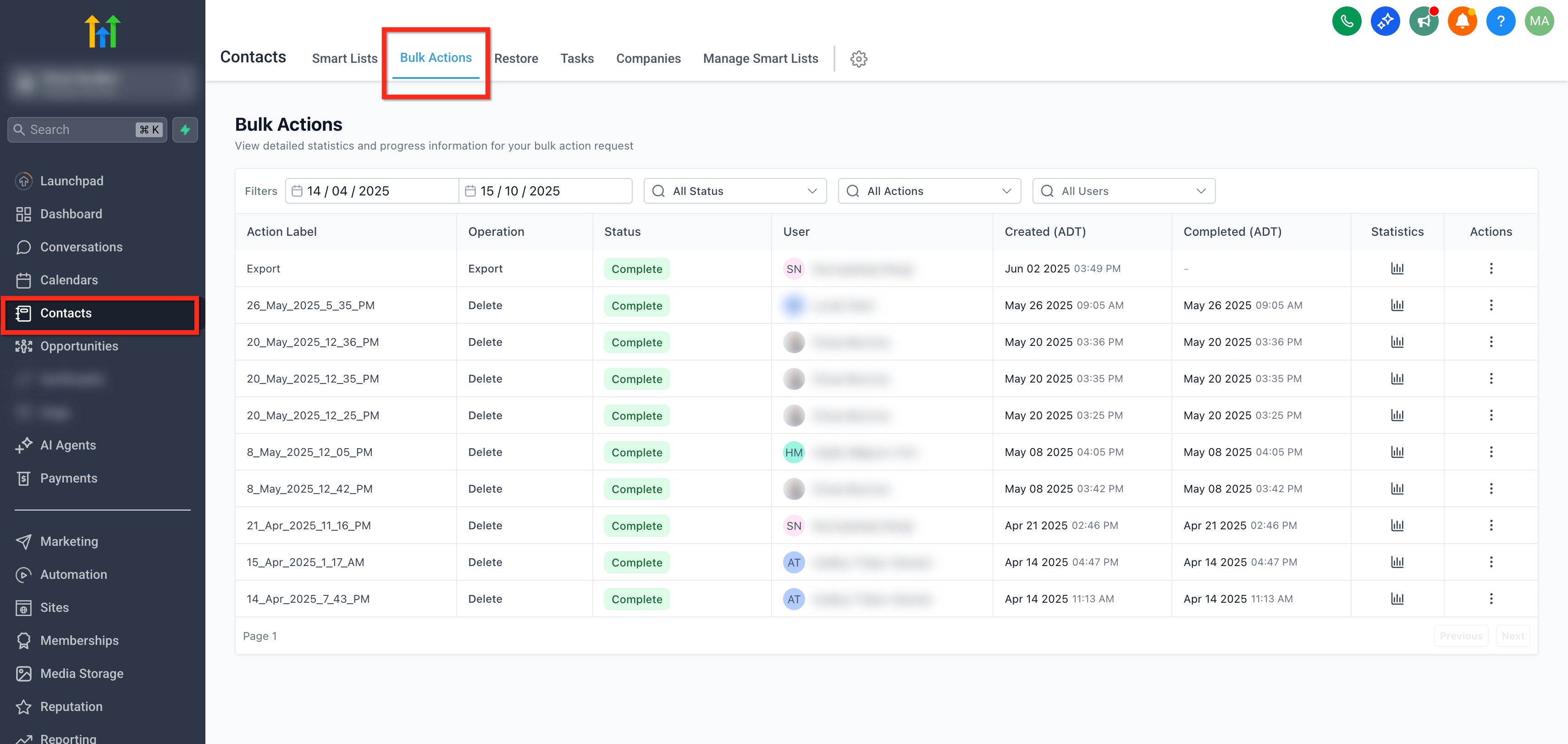
Every bulk action you run — not just sends — shows up in one place:
- Go to Contacts > Bulk Actions.
- You'll see a list of every bulk operation, each with a status: In Progress, Completed, Paused, or Canceled.
- Click Show Stats on any entry to see totals — how many contacts were processed, how many succeeded, how many failed — and download an error log for anything that didn't go through.
- For eligible in-progress jobs, a menu lets you pause, cancel, or adjust the run before it finishes.
Undoing a bulk action
Some bulk actions can be reversed, some can't:
- Bulk deletes can typically be restored for a limited window (roughly 60 days) from the Bulk Actions history — see Deleting or merging contacts safely.
- Tag additions and removals can be undone by running the opposite bulk action, but there's no one-click "undo" — you're reapplying the change in reverse.
- Sent messages (email or SMS) cannot be unsent once delivered. This is the single best reason to always preview and, where possible, send a test to yourself before launching a bulk send to a real list.
What "done" looks like
Before you click confirm on any bulk action, you should know: exactly which contacts are selected (ideally via a smart list you can re-verify), what the action will do to them, whether it needs pacing, and how you'll check on its progress afterward. If any of those four is unclear, stop and check the Bulk Actions dashboard's stats on a similar past run before proceeding.
Related articles
- Bulk add to workflow, add/remove tags, and export
- Bulk email/SMS sends and deleting or merging contacts safely
- What smart lists are and how filters work
Frequently asked questions
Can I run a bulk action on contacts across multiple smart lists at once?
Not directly — a bulk action operates on whatever's currently selected in one view. If you need contacts from two different smart lists, either build one combined smart list with OR logic, or run the action twice.
Does a paused bulk action lose its progress?
No. A paused job keeps whatever it already completed and resumes from where it left off when you unpause it.
Will DND contacts be included if I select "all" for a bulk email send?
They can be selected, but message-based bulk actions skip DND contacts automatically for the relevant channel — they won't actually receive the send even if included in your selection.