
Split testing your pages
How to create a variation of a funnel page, split traffic between versions, read the results, and pick a winner.
If you've ever wondered whether a different headline, button color, or layout would convert better, split testing gives you a real answer instead of a guess. It runs two (or more) versions of the same funnel step side by side, sends a portion of your live traffic to each, and lets you compare results before committing to one.
What split testing does
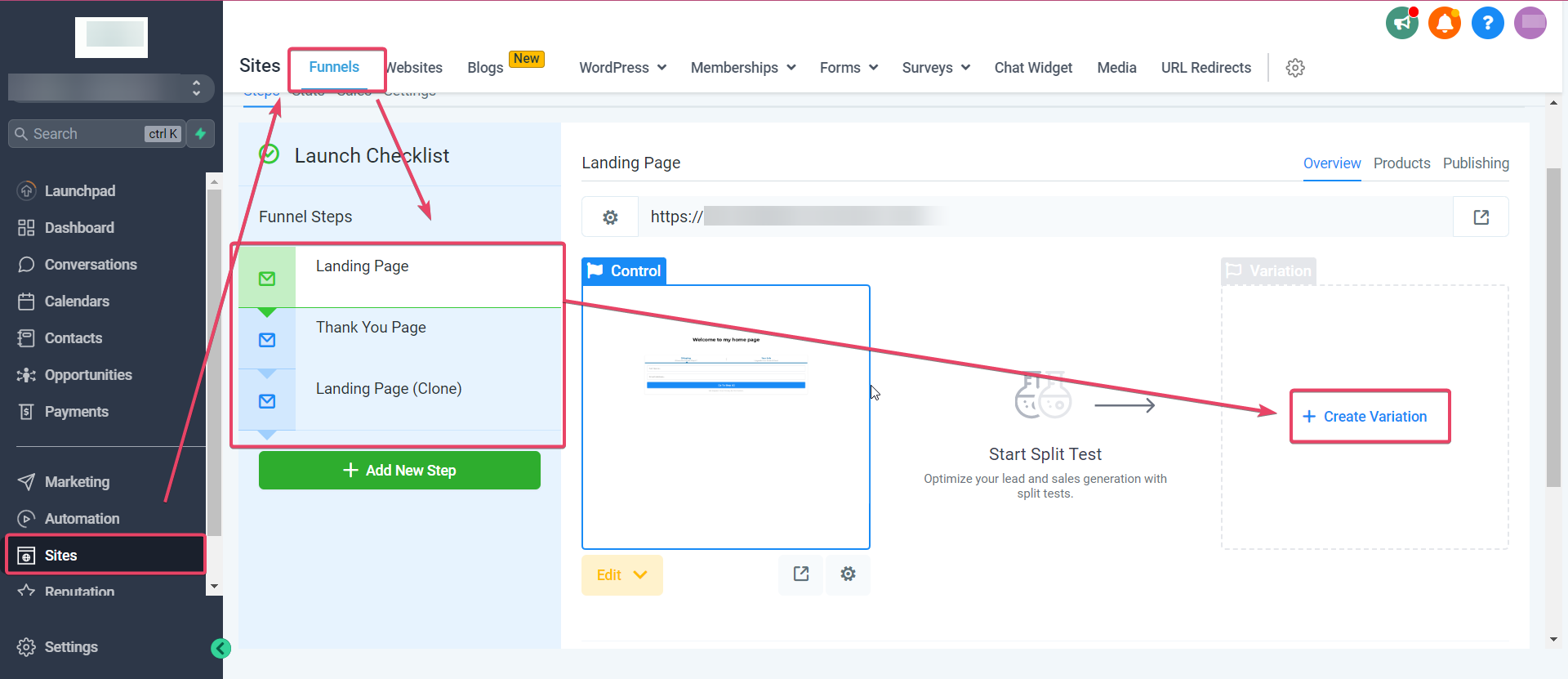
Split testing works on individual funnel steps, not entire funnels. You pick one step — say, your opt-in page — and create a variation of it. The platform then splits incoming traffic between your original page (the "control") and the new version (the "variation") according to a percentage you choose, and tracks opt-ins and sales for each version separately.
Note: Split testing is available on funnel steps, not standalone website pages. If you're testing a page on a website rather than a funnel, you'll need to compare performance manually using the Analytics dashboard instead.
Setting up a split test
- Open the funnel you want to test and go to the step you want to experiment with.
- Click Create Variation on that step.
- Choose how you want to create the new version — as a starting point, you can duplicate the existing page and edit it, or build a fresh layout.
- Edit the variation: change the headline, layout, image, call-to-action button, or whatever element you're testing. Change one meaningful thing at a time if you want a clean read on what caused any difference in results — testing five changes at once makes it hard to know which one mattered.
- Use the traffic-split slider to decide what percentage of visitors go to the Control page versus the Variation. A 50/50 split is the most common starting point.
- Click Start Split Test.
How visitors are assigned
All incoming traffic still arrives at the same public URL for that step. Behind the scenes, the platform decides which version to show based on your traffic split, then remembers that choice with a browser cookie — so a given visitor keeps seeing the same version of the page on repeat visits instead of flipping between them.
Tip: If you want to check what the other version looks like while a test is running, open it in an incognito/private window or a different browser. Your regular browser is already cookied to one variant.
Reading the results
- Go to the funnel's Stats tab.
- Select the step that's running the split test.
- Use the dropdown to switch between Control and Variation — each shows its own page views, opt-in rate, sales rate, and revenue, using the same metrics covered in reading funnel step statistics.
Compare the opt-in rate (or sales rate, if that step sells directly) between the two versions. The version with the meaningfully higher rate — not just a fraction of a percentage point higher — is your likely winner.
Warning: Don't call a winner too early. A version that's "ahead" after 20 visitors on each side can easily flip once you have a few hundred. As a rule of thumb, wait until each version has enough opt-ins or sales (not just page views) that a few more conversions either way wouldn't meaningfully change the rate — dozens of conversions per version is a reasonable minimum for most small-business funnels.
Picking a winner
Once you're confident one version is outperforming the other, update your live page to match the winner and stop running both versions — there's no ongoing benefit to leaving a test running once you already have a clear answer, and it just means you're serving a known-weaker page to some fraction of your traffic.
Warning: If you delete the losing variation after ending a test, any visitor whose browser was already cookied to that version may land on a broken link if they return. If a test has been running a while and has real repeat traffic, consider leaving the losing page in place (just no longer receiving new traffic) rather than deleting it outright.
What to test first
If you're new to split testing, prioritize elements likely to move the needle the most:
- Headline — the single biggest lever on most landing pages
- Call-to-action button text and color — "Get Started" vs. "Claim My Spot," for example
- Hero image or video — especially whether a video increases or decreases opt-ins
- Form length — fewer fields usually means a higher opt-in rate, at the cost of lead quality
- Price presentation — how an offer or bundle is framed, if the step includes a sale
Save smaller, cosmetic tweaks (minor color adjustments, spacing) for later — they rarely move conversion enough to justify the traffic and time a proper test requires.
What done looks like
You should have one step running a live split test with a sensible traffic split, be able to pull up Control vs. Variation stats side by side, and know the specific opt-in or sales rate threshold you're waiting to see before declaring a winner and updating your live page.
Related articles
Frequently asked questions
Can I split test more than two versions at once?
The built-in tool is designed around a Control page and one Variation. If you want to compare more than two ideas, run them as sequential tests (test A vs. B, apply the winner, then test the winner against C) rather than trying to split traffic three or more ways.
Will split testing affect my SEO?
No. Split testing happens at the funnel-step level and routes visitors dynamically behind one public URL — it isn't the kind of duplicate-content setup that affects search rankings.
What happens if I pause a split test partway through?
You can stop sending new traffic into the split at any time and revert to a single version. Stats already collected for the Control and Variation remain available on the Stats tab for reference even after the test ends.