
Fix domain and SSL connection problems
Troubleshoot a custom domain that won't connect, shows Not Secure, or has the wrong DNS records — including propagation delays and www vs. root domain setup.
A custom domain that won't connect, or that connects but shows a browser security warning, is almost always a DNS configuration issue rather than something broken inside the platform. This article walks through the most common symptoms, why they happen, and the fastest path to a fixed, secure domain.
Symptoms
- The domain doesn't load your funnel or website at all (timeout, "can't reach this site," or it shows a parked page from your registrar).
- The browser shows "Not Secure", "Your connection is not private," or a certificate-name-mismatch warning.
- The domain works on
www.yourdomain.combut notyourdomain.com(or vice versa). - It worked yesterday and stopped working today with no changes on your end.
- Domain Status in your account shows Pending, Unknown, or an error next to the domain.
Likely causes
- DNS records point to the wrong place. The domain's A record or CNAME record doesn't match what the platform requires, so traffic never reaches your funnel or website.
- Conflicting DNS records. A domain or subdomain has both an A record and a CNAME record pointing at it, or two A records with different values. Having more than one record type for the same host blocks the automatic SSL certificate from issuing, even if the site otherwise loads.
- DNS hasn't propagated yet. DNS changes don't take effect everywhere instantly — your computer, your ISP, and other networks around the world each cache the old answer until it expires.
- SSL certificate hasn't been issued yet. The platform automatically requests a free SSL certificate once it can verify your DNS records are correct and unambiguous. Until that verification succeeds, the domain serves over plain HTTP or shows a certificate error.
- A proxy or "orange cloud" DNS setting is turned on. If your domain is on a DNS provider that offers proxying (traffic routed through their network before reaching the destination), that has to be turned off for the domain-verification and certificate process to see your real DNS records.
- www and root domain aren't both handled. If someone types the version of the domain you didn't configure, it won't resolve unless a redirect is in place.
Step-by-step fixes (most common first)
1. Confirm the exact DNS records required
In your account, open Settings > Domains, select the domain, and view the DNS instructions it gives you. You'll be shown one of two setups — use only one, never both:
- CNAME method (subdomains only, e.g.
wwworapp): Host = the subdomain, Value = the target hostname shown in your account. - A record method (root domains or subdomains): Host =
@for the root domain, or the subdomain name; Value = the IP address shown in your account.
Warning: Do not create both a CNAME and an A record for the same host. Having both is one of the most common causes of a stuck SSL certificate.
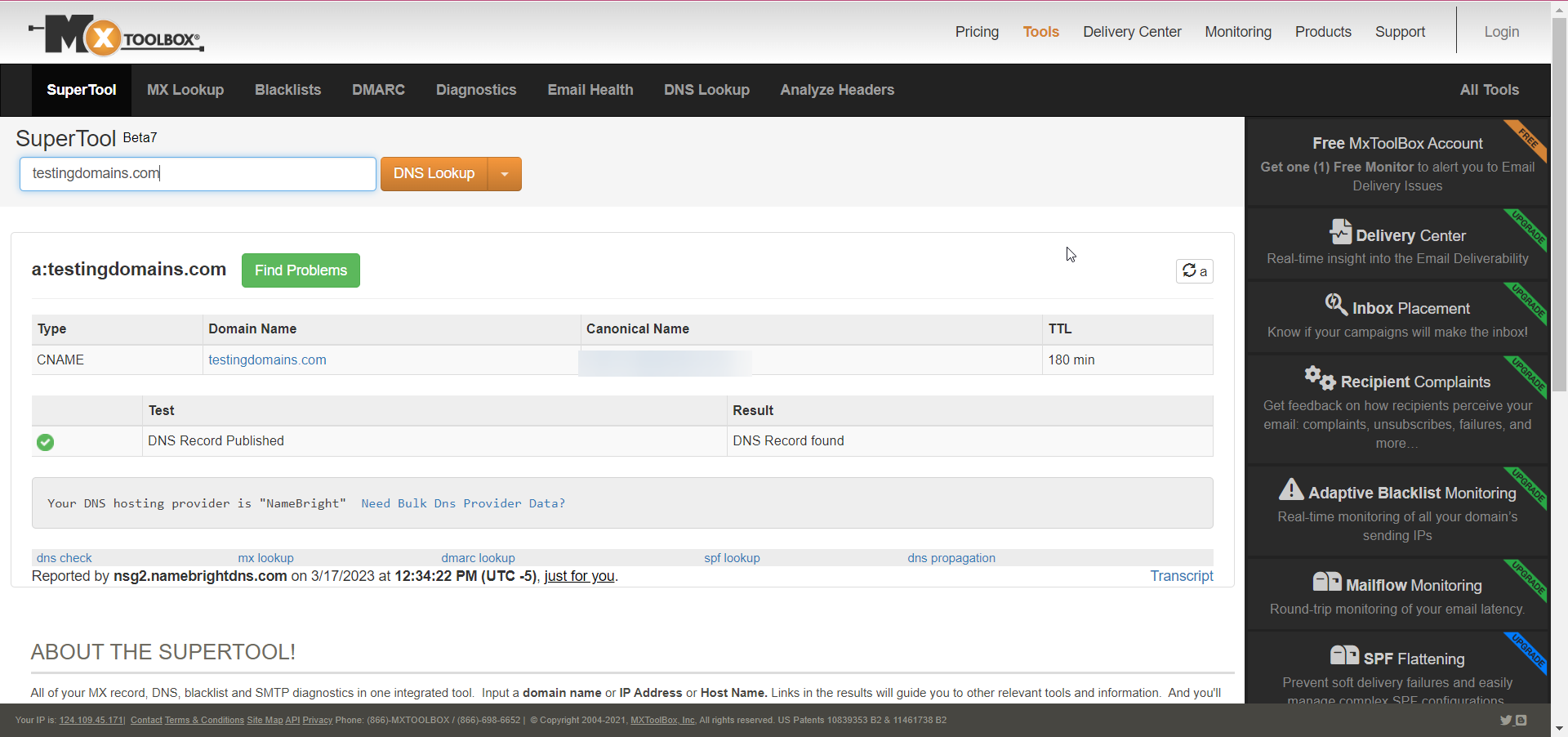
2. Check your DNS provider for conflicting or leftover records
Log in to wherever your domain's nameservers are managed (your registrar, or a separate DNS host like Cloudflare). Look for:
- Any old A record on the same host that predates your setup (common when a domain was previously used for a different site or a page builder).
- An AAAA record (IPv6) left over from a previous host — remove it if you didn't set it up on purpose.
- Duplicate CNAME entries.
Delete anything that isn't the single record your account's DNS instructions specify.
3. Turn off DNS proxying if your provider offers it
Some DNS hosts sit traffic in front of your domain by default (sometimes shown as an "orange cloud" or "proxy" toggle next to the record). Set the record to DNS only — the platform needs to see your actual destination, and its own SSL and routing layer handles the rest.
4. Handle both www and the root domain
Decide which version is primary. Most setups automatically redirect www to the root domain (or the reverse) once the root domain is added — check your domain's settings to confirm which one is treated as canonical, and add a redirect for the other if it isn't automatic. Visitors bookmark and type both forms, so leaving one dead loses traffic.
5. Re-verify the domain after DNS is correct
Once records are fixed, go back to Settings > Domains and use the re-verify or check DNS option next to the domain. This re-triggers the connection check and SSL certificate request — it doesn't happen automatically just because you edited DNS.
6. Give it time to propagate — then retest
DNS changes spread gradually as caches expire around the internet, governed by each record's TTL (time to live). With typical default TTLs, propagation is usually complete within a few hours, but can take up to 24–48 hours in slower cases. If you just made the change:
- Wait at least 30–60 minutes before troubleshooting further.
- Retest from a different network or device (mobile data instead of home Wi-Fi) — your own router or ISP may be caching the old answer longer than others.
- Use a public DNS propagation checker to see what different regions currently resolve.
Tip: If you manage the DNS zone and know a change is coming, lower the TTL on the record to something short (like 300 seconds) a day in advance. That makes the eventual cutover propagate in minutes instead of hours.
How to verify it's fixed
- In Settings > Domains, the domain's status should read Connected (or equivalent) with no warning icon.
- Visit the domain directly in a private/incognito browser window (this avoids your own browser and DNS cache masking the real result).
- Confirm the padlock icon appears in the address bar with no "Not Secure" label.
- Load both the
wwwand root versions and confirm each resolves (either to the site directly, or via a clean redirect to the other). - Check on a second network (e.g., your phone on cellular data) to rule out local DNS caching.
When to contact support
Reach out if, after 48 hours with correct and conflict-free DNS records, the domain still shows Pending, Unknown, or an SSL error. Include:
- The exact domain or subdomain affected.
- A screenshot of the current DNS records from your registrar/DNS provider (host, type, and value for every record on that host).
- The status shown on the Settings > Domains page.
- When you last changed DNS, and whether you've re-verified since then.
- The error message and a screenshot of the browser warning, if applicable.
Related articles
Frequently asked questions
Do I need to buy an SSL certificate separately?
No. Once your domain's DNS is verified and unambiguous (one A record or one CNAME, not both), a certificate is issued automatically at no extra cost. You never upload or purchase one yourself.
Why does the domain work for me but not for a customer?
DNS propagation isn't instant everywhere. You and your customer may be hitting different DNS resolvers that haven't all refreshed yet. This resolves itself within the propagation window — it isn't something to reconfigure.
Can I use a domain I bought somewhere else, like Namecheap or GoDaddy?
Yes. You don't need to transfer the domain itself — you only need access to edit its DNS records, which you do from your registrar's or DNS host's dashboard, not from inside this platform.
What's the difference between the root domain and a subdomain for this purpose?
The root domain is yourdomain.com; a subdomain is anything in front of it, like app.yourdomain.com or www.yourdomain.com. Root domains generally need an A record; subdomains can usually use either method, but CNAME is simpler when available.