
Investigate and replay automation runs
Read a failed execution, correct its cause, and verify an eligible replay through completion.
A workflow run records an individual execution, including status and attempt history. Use that record to investigate a failed Northgate ESD Packaging integration before deciding whether replay is appropriate.
This procedure is for authorized Forge platform operators. Customers should provide their operator with the affected business, expected outcome, and approximate event time when workspace administration is unavailable.
Find the correct execution
- Open Automations and the intended workspace.
- Choose Runs.
- Match the workflow and start time to the event you are investigating.
- Open the run detail.
- Read its status and available failure information.
- Inspect its attempt history before taking action.
Do not choose a run only because it is the most recent failure. A workspace can contain several workflows, and retries can produce multiple attempts for one logical event.
For Northgate, identify the particular demo inquiry or integration event. The relevant question is whether that event produced its intended result, not whether an unrelated workflow has a green status.
Interpret the status
| Status | Meaning for the operator |
|---|---|
running | Execution is still in progress |
completed | The workflow reported completion |
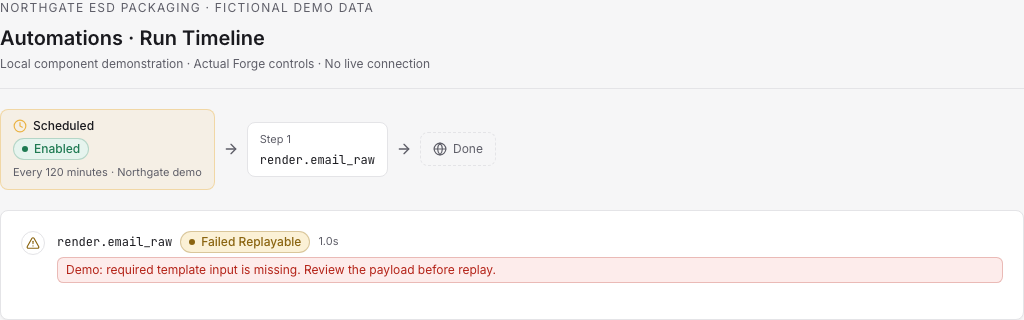
failed_replayable | The failure is eligible for the replay control |
failed_terminal | The run is not offered the same replay path |
A replayable classification does not mean the underlying problem has disappeared. A connection failure, invalid destination, or unavailable provider can still affect the next attempt.
The absence of a replay button is meaningful. Do not construct a different request or copy the original event into a new workflow just to bypass the run's supported recovery path.
Check the cause and destination
Read the error alongside the workspace's Connections, Audit, and Recovery views. If validation failed, have the responsible operator correct the connection and validate it again. If a destination or data issue is involved, resolve that issue before repeating the work.
Check the external result when the failure leaves delivery uncertain. A destination may have received an action even if an acknowledgment was interrupted. For a message or record-creation workflow, determine whether the intended result already exists before retrying.
This is why a run status alone is insufficient evidence for every operational conclusion. It describes Forge's execution record; the destination confirms what actually arrived.
Replay an eligible run
- Return to the reviewed run after its cause has been addressed.
- Confirm that it is the same workspace, workflow, and event.
- Choose Replay Run when the action is available and appropriate.
- Read the re-queue result.
- Reopen or refresh the run detail to inspect subsequent execution and attempts.
- Verify the intended destination outcome.
Queued and “Run re-queued successfully” mean that processing was requested. They do not mean the replay has completed. Wait for the recorded execution result before closing the incident.
If the replay fails again, use the new error and attempt evidence to reassess the cause. Repeated clicking does not repair a bad connection or incorrect configuration.
Close the investigation clearly
Record the workspace, workflow, run, failure cause, correction, replay result, and destination check. For Northgate's demo event, a useful closeout says that the intended record was present once and the corrected run completed.
If the run is terminal or the cause is outside your control, leave a precise handoff with the error and required next owner. Do not label it resolved merely because you found the failed run or queued another attempt.