
Use custom fields in forms, surveys, and the contact record
Map a custom field to a form or survey question, control where it shows on the contact record, and keep field data consistent across every entry point.
A custom field only earns its keep once it's actually collecting data. The most common place that happens is a form or survey question, with the answer landing straight on the contact record. This article covers mapping a field to a question, adding a new field without leaving the form builder, and how the data shows up once someone submits.
Adding a custom field question to a form or survey
- Open the form (or survey) in the builder and add a new field to the layout.
- When prompted for the field's data source, choose Custom Field instead of a standard field, then pick the existing custom field from the list. The dropdown is organized by folder if you've set folders up, which makes finding the right field in a long list much faster.
- Set the question's visible label and any placeholder or help text — this can be worded differently from the field's internal name if you want friendlier copy on the public-facing form (e.g. the field is named "Lead Source Detail" but the question reads "How did you hear about us?").
- For dropdown, radio, or checkbox fields, the options you defined when creating the field appear automatically; you don't re-enter them per form.
- Save and publish the form.
Adding a custom field question to a form, with the field picker open
Every submission from that point on writes the visitor's answer to the same custom field on their contact record — regardless of which page or funnel the form is embedded on.
Creating a field without leaving the form builder
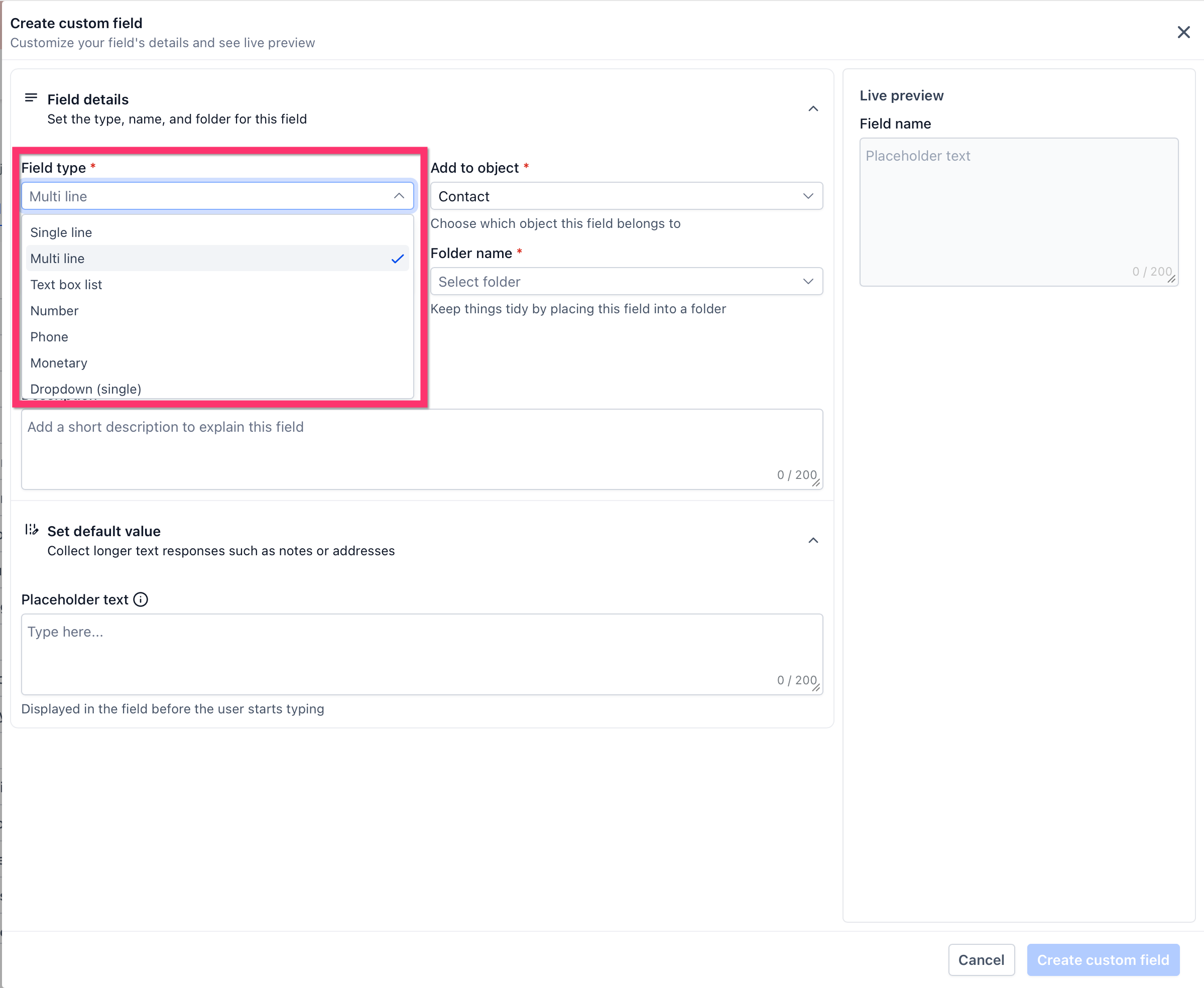
If you're building a form and realize you need a field that doesn't exist yet, you don't have to stop and go create it in Settings first. Most form and survey builders offer a Quick Add option in the field picker: drag a "Custom Field" element onto the form, and you're prompted to name it and pick a type right there. The field is created behind the scenes exactly as if you'd built it from Settings, and it's immediately available to every other form and survey on the account afterward.
Tip: Quick Add is convenient, but it's also how accounts end up with near-duplicate fields — someone quick-adds "Move In Date" on one form without noticing "Preferred Move-In Date" already exists. If you're not sure, check Settings > Custom Fields before quick-adding.
Where the answer shows up on the contact record
Once a submission comes in, the custom field's value appears on the contact's profile in whichever section (folder) the field belongs to. From there:
- Your team can view and manually edit it, the same as any other field.
- It's available immediately to any workflow that's watching for a Form Submitted or Custom Field Updated trigger on that contact.
- It shows up as a column and filter option in smart lists, so you can segment contacts by their answer (see the Smart Lists articles for building filtered views).
Because the field lives on the contact rather than on the form, the value persists even if you later delete the form that originally collected it — deleting a form doesn't delete the data it already wrote.
Multiple forms, one field: keeping answers consistent
The same custom field can be mapped on any number of forms. That's useful — a "Preferred Contact Method" field can appear on your main intake form, a shorter follow-up survey, and the chat widget's contact form, all writing to the same place — but it means the newest submission generally overwrites the field's previous value. If a contact fills out two different forms with conflicting answers to the same question, the record reflects whichever one they submitted more recently.
If you need to preserve a history of changing answers rather than just the latest one, a single custom field isn't the right tool — that calls for either a dedicated "notes" style long-text field where you append rather than overwrite, or tracking the change through a workflow action that logs it elsewhere.
Standard fields still come first
Before mapping a question to a custom field, confirm it isn't better served by a standard field. Email, phone, first name, last name, and address are standard fields for a reason: automations, contact matching, and deliverability tooling across the platform expect those specific fields to hold that specific kind of data. Routing an "Email" question to a custom text field instead of the standard Email field is a common mistake that quietly breaks confirmation emails and contact de-duplication.
What "done" looks like
For any form on your account, you should be able to say which of its questions map to standard fields and which map to custom fields, and confirm the custom-field mappings point at existing, well-named fields rather than accidental quick-add duplicates. A quick pass through Settings > Custom Fields every so often — looking for near-duplicate names — keeps this tidy as your form library grows.
Related articles
- Custom fields overview
- Create and manage custom fields
- Use custom fields in emails, SMS, and automations
Frequently asked questions
Can I make a custom field question required on a form?
Yes — custom field questions support the same required/optional toggle as standard fields in the form builder. Mark it required if a submission shouldn't be considered complete without an answer.
If I remove a custom field question from a form, does it delete past answers?
No. Removing the question from the form only stops future submissions from writing to that field through that form. Every contact who already submitted an answer keeps it on their record.
Can the same form use a custom field twice, for two different questions?
Not usefully — since the field is a single value per contact, mapping it to two questions on the same form would just have the second submission overwrite the first. If you need two related but distinct pieces of data, create two separate custom fields.