
Create and send an email campaign
Step-by-step: choose a template, target recipients, send now or schedule, use batch pacing for large lists, and send a test before you go live.
Building and sending a campaign has three phases: design the email, choose who gets it and when, and confirm it looks right before it's irreversible. This article walks through all three, plus the batch pacing option for sending to large lists gradually instead of all at once.
Step 1: Start the campaign and choose a template
- Go to Marketing > Emails > Campaigns and click New.
- Select a starting point: an existing saved template, a blank layout, or duplicate a previous campaign. Using a saved template keeps your branding consistent and saves rebuilding common layouts from scratch — see the Email Templates articles if you haven't built one yet.
- Edit the content in the drag-and-drop builder — text, images, buttons, links. Add any merge tags for personalization (see Use custom fields in emails, SMS, and automations).
- Use Preview to check how it renders, including on mobile.
Step 2: Choose recipients
Every campaign needs a defined audience before it can send:
- Click Send or Schedule to move into the delivery setup screen.
- Set the Sender Name and From address — this should be on a verified, properly configured sending domain, or deliverability suffers.
- Write the Subject Line. A personalized subject line (using a first-name merge tag, for example) commonly improves open rates — see Read campaign results for what to check afterward.
- Choose Recipients. You can target a saved smart list, specific tags, or a manually built segment, depending on what's set up in your account. Using a smart list is generally the most maintainable option, since the list updates itself as contacts' attributes change — see the Smart Lists articles for building one.
- Optionally enable link tracking, UTM tracking, and apply tags to contacts who receive (or later engage with) the campaign, which is useful for building follow-up automations off this specific send.
Tip: Exclude contacts who've already converted on this offer or who are already deep in a related workflow, so you're not sending a promotional blast to someone who just bought. Most smart list builders support "not in" conditions for exactly this.
Step 3: Send now, or schedule for later
You have two delivery choices:
- Send now — the campaign goes out immediately to the full recipient list you selected, all at once (unless batch pacing is enabled, below).
- Schedule — pick a future date and time (based on your account's timezone), and the campaign sends automatically at that moment. Scheduled campaigns can be rescheduled up to about an hour before they're due to go out; after that window, plan on letting it send and following up separately if something needs to change.
If your account has a Smart Send option, it can automatically choose the best delivery time per recipient based on past engagement patterns, aiming for higher open and click rates without you having to guess a send time yourself.
Optional: batch scheduling for large sends
Sending an enormous list all in one burst can spike traffic to your website or funnel and put unnecessary load on your systems right as everyone clicks through at once. Batch scheduling (sometimes called drip mode) spreads delivery across defined intervals instead:
- From the send/schedule screen, choose Batch Schedule instead of a single send time.
- Set a start date and time.
- Set the batch quantity — how many emails go out per batch, not the total number of batches.
- Set the repeat frequency — how often a new batch goes out (every few minutes, hours, or once a day).
- Uncheck any days you don't want sends to happen on, and set start/end times to keep batches inside a sending window (e.g., business hours only).
Batch scheduling is worth using any time your recipient list runs into the thousands, both to protect your own infrastructure and because a sudden, unnatural spike in send volume can itself be a deliverability red flag with mailbox providers.
Step 4: Send a test before you commit
Don't skip this, especially for a campaign with merge tags or a promotion with a hard deadline:
- From the campaign (or its template), open the actions menu and choose Test Email.
- Fill in a recipient address you control and, if prompted, a sample contact whose data will populate any merge tags.
- Send the test and check it on both desktop and mobile — subject line, preview text, images loading, links pointing to the right place, and merge tags rendering with real values instead of showing blank or literal
{{ }}text.
Attachments
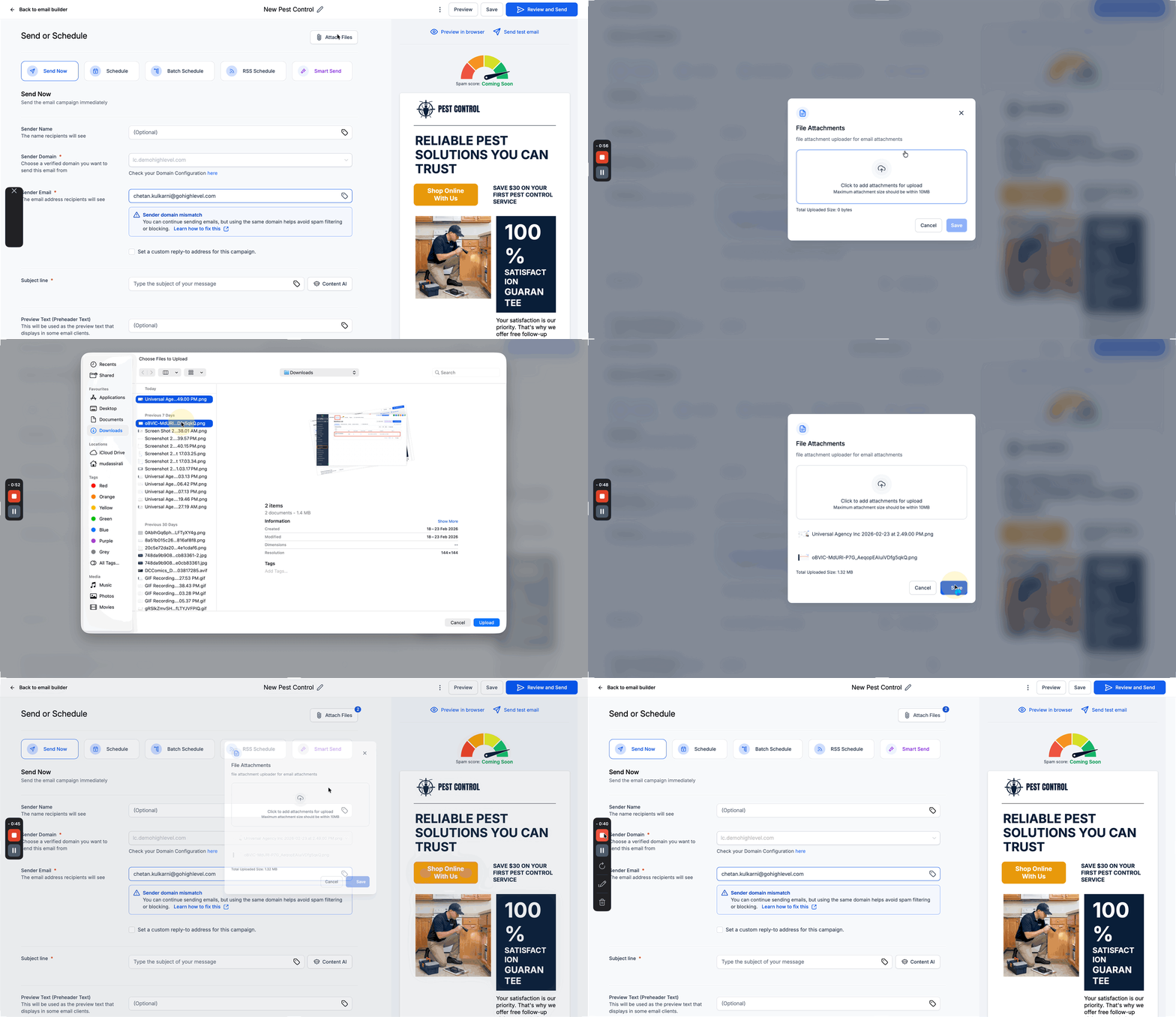
If you need to include a file (a PDF flyer, a coupon image), most campaign builders support attaching files up to roughly 10MB directly to the send, in addition to whatever's embedded in the email design itself. Keep attachments small where possible — large attachments slow load time and can trip spam filtering on some recipient mail systems.
What "done" looks like
Before you click Send or Schedule, you should have: previewed the email on both desktop and mobile, sent yourself a test that shows merge tags rendering correctly, confirmed the recipient list is the one you actually intend (not a stale saved list), and — for large sends — decided whether batch pacing is appropriate. A campaign is much easier to get right before sending than to walk back afterward.
Related articles
Frequently asked questions
Can I edit a campaign after I've scheduled it but before it sends?
Yes, up until it actually starts sending — you can typically change the content, recipients, or timing, and with batch scheduling you can even update the email copy partway through a multi-batch send using an "update content" option, which applies to batches that haven't gone out yet.
What's the difference between a campaign and a bulk action send?
A campaign is built and tracked as its own object with its own report, designed for a promotional or newsletter-style message you want a full history of. A bulk action is a quicker one-off send triggered directly from a filtered contact list, useful for smaller, more operational messages. See the Bulk Actions articles for that workflow.
Do I need to warm up a new sending domain before a big campaign?
Deliverability best practice is generally yes — sending a large volume of email from a brand-new domain all at once looks suspicious to mailbox providers and can hurt your sender reputation. If you're on a new domain, start with smaller sends (or use batch scheduling deliberately at a conservative pace) and build up volume over time. See the Email Marketing articles for deliverability guidance.